Skip to content
LogoTechnipages
LogoTechnipages
  • Topics
        • Android
        • Browsers
        • Gaming
        • Hardware
        • Internet
        • iPhone
        • Linux
        • macOS
        • Office
        • Reviews
        • Software
        • Windows
        • Definitions
        • All Recent Posts
  • Product Reviews
  • About

How to Turn Samsung Galaxy Z Fold 4 On and Off

Andrew MyrickNovember 4, 2022 Comments (0)

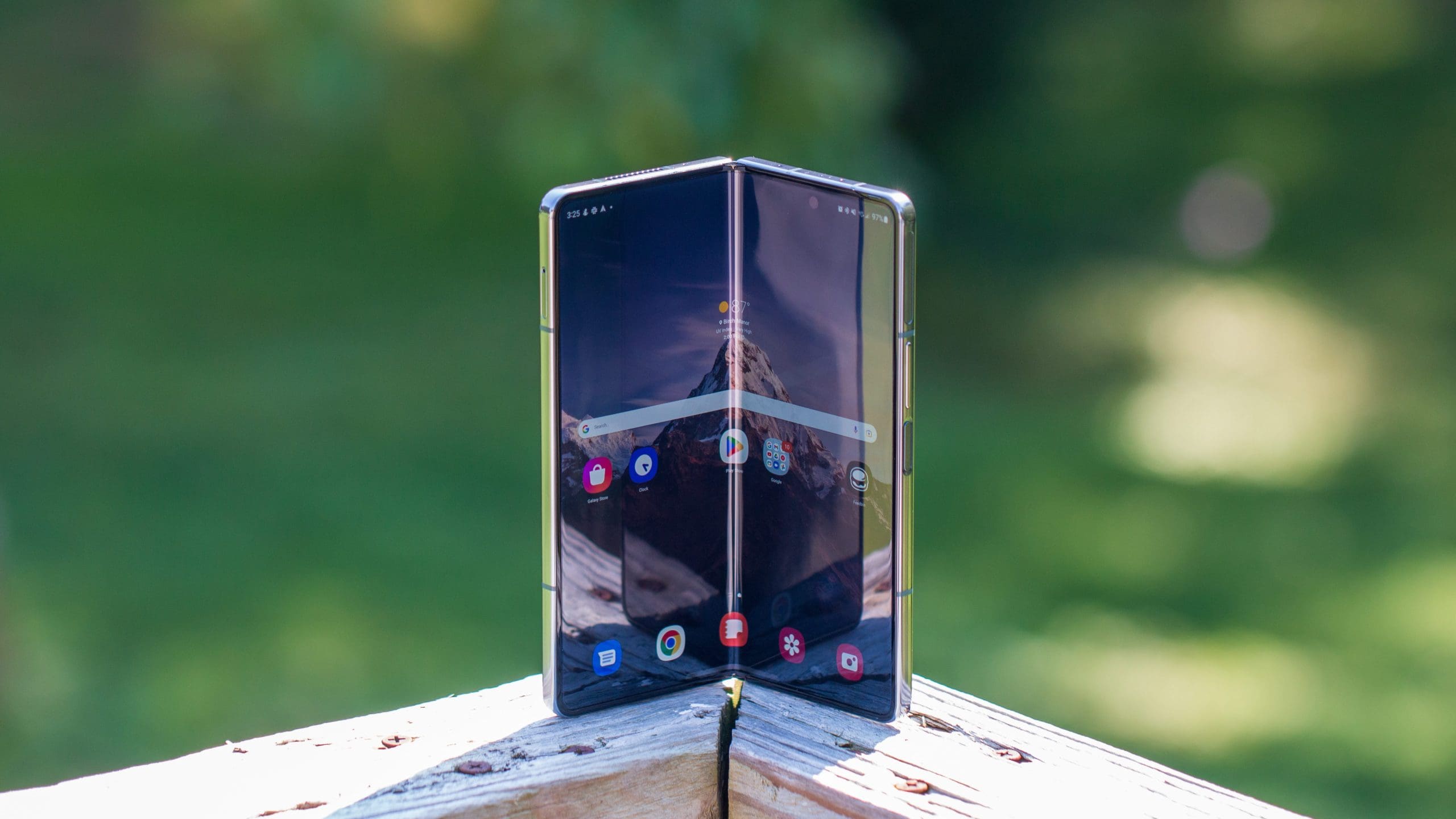
The Samsung Galaxy Z Fold 4 is an incredible piece of technology, and we’re hoping to see more foldable phones made available in the near future so that the market can continue to develop and grow. While it may look like something out of Star Trek, the Galaxy Z Fold 4 is still just a smartphone and portable computer. With that in mind, you might find yourself needing to turn Samsung Galaxy Z Fold 4 on and off from time to time, not counting when you initially take it out of the box.

Contents

  • 1 How to Turn on the Galaxy Z Fold 4
  • 2 How to Turn off Galaxy Z Fold 4
    • 2.1 Customize the Side Key on the Galaxy Z Fold 4

How to Turn on the Galaxy Z Fold 4

Whether it’s the first time you’ve used the Galaxy Z Fold 4 or it ended up running out of battery, it’s easy to get the Galaxy Z Fold 4 powered up. Press and hold the Side Key of the device for a few seconds until the Samsung logo appears.

How to Turn off Galaxy Z Fold 4

Unlike powering on the Z Fold 4, there are a few different methods for turning the device off. The first of which involves the Notification Shade.

  1. Unlock your Galaxy Z Fold 4.
  2. Swipe down from the notification bar to reveal the Notification Shade.
  3. Tap the Power Icon in the top right-hand corner.
  4. Tap Power off.
  5. Confirm.

The next method involves the Side Key.

  1. Press and hold the Side Key for three seconds.
  2. Tap the Power Icon in the top right-hand corner.
  3. Tap Power off.
  4. Confirm.

In the event that your Galaxy Z Fold 4 is acting odd and won’t respond to interactions with the screen, there is another way to turn the device off.

  1. Press and hold the Power and Volume Down buttons.
  2. Continue holding the buttons until the Samsung logo appears.
  3. Release the Power and Volume Down buttons.

This performs a “hard reset” and is akin to holding down the power button on your PC to get it to turn off when it won’t respond. None of your data will be lost, but it may take a few moments for your Z Fold 4 to start back up.

Customize the Side Key on the Galaxy Z Fold 4

The Side Key is also known as the Power Button, and vice versa, on the Galaxy Z Fold 4. In some instances, you may find that pressing down the Side Key does not actually provide any actions to perform regarding powering down or restarting your new phone. In that event, you will need to head into the settings menu and adjust those Side Key options.

  1. Open the Settings app on your phone.
  2. Scroll down and select Advanced Features.
  3. Tap Side Key.
  4. Under Press and hold, select the Power off menu.

And that’s it! Now the Power Off menu will appear whenever you press and hold on the Side Key with the Galaxy Z Fold 4. Obviously, if you want to head back in and change the options for double-clicking, you can go back to the Advanced Features section in the Settings app and do just that.

Categories: Android

Author Andrew Myrick

Andrew Myrick is a freelance writer based on the East Coast of the US. He enjoys everything to do with technology, including tablets, smartphones, and everything in between. Perhaps his favorite past-time is having a never-ending supply of different keyboards and gaming handhelds that end up collecting more dust than the consoles that are being emulated.

You Might Also Like

  • Android: How to Disable Auto-Correct in Easy Steps

    Mitch BartlettAndroid
  • Android: How to Add a Gmail Account

    Judy SanhzAndroid
  • WhatsApp: How to Hide Your Profile Picture from a Specific Contact

    Judy SanhzAndroid
  • 7 Offline and Free Games for Any Android Device

    Judy SanhzAndroid

Leave a Reply

Your email address will not be published. Required fields are marked *

  • browser screen goes black

    Browser Screen Goes Black Intermittently 

  • computer heating up in hyper v

    Computer Heating Up When Using Hyper-V – How to Fix 

  • clipchamp unexpected application error

    Clipchamp Unexpected Application Error: Here’s the Solution 

  • winload.efi file missing error

    Winload.EFI File Missing Error on Boot – How to Fix

  • fix error 0x9cfc7550

    How to Fix Error 0x9cfc7550 (We Couldn’t Create a New Partition) in Windows 

profile pic

The Experts Behind Technipages

My name is Mitch Bartlett. I've been working in technology for over 20 years in a wide range of tech jobs from Tech Support to Software Testing. I started this site as a technical guide for myself and it has grown into what I hope is a useful reference for all.

Learn More

technipages logo white
linkedin icon

Technipages is part of Guiding Tech Media, a leading digital media publisher focused on helping people figure out technology. Learn more about our mission and team here.

© 2025 Guiding Tech Media All Rights Reserved

  • About Us
  • Contact
  • Terms of Use
  • Privacy Policy

© 2025 Guiding Tech Media All Rights Reserved

Information from your device can be used to personalize your ad experience.
Do not sell my personal information.