While many of us wish the days of phone calls would just go away, sadly, that’s not a realistic expectation. The truth is that outside of emergencies, or regular family check-ins, many phone calls that come through to your phone are just spam calls. The end result is a series of voicemails that can pile up faster than you can keep up with them. Some phone makers have gone to great lengths in order to combat the modern-day version of junk mail, but you’ll still want to have set up voicemail on Android.
How To Set Up Voicemail on Android
Most of the time, whenever you put your SIM card into a new phone, traditional voicemail is automatically set up. This means that you don’t need to fiddle around and set up voicemail on Android yourself. Instead, it’s handled by the carrier, so you immediately receive voicemails as soon as they are left. But if you want to make sure that everything is set up properly, here’s how to set up voicemail on Android:
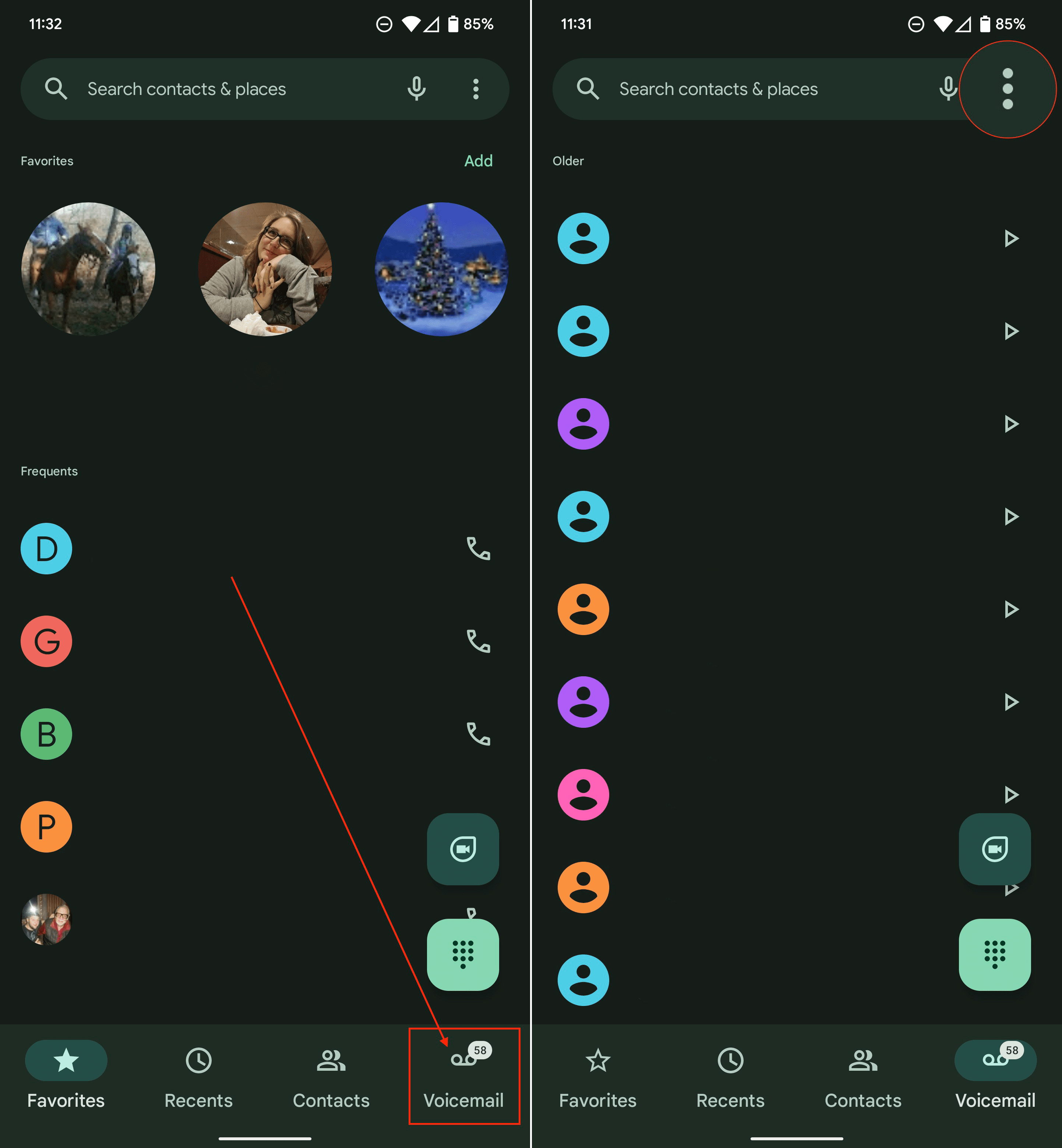
- Open the Phone app on your Android phone.
- Locate and tap the Voicemail button. This is usually found in the bottom toolbar.
- Tap the three vertical dots in the top right corner.
- From the drop-down menu, tap Settings.
- Tap Voicemail.
- Go through each of the following options to set up voicemail on Android:
- Notifications
- Voicemail Greeting
- Advanced Settings

As a note, these steps apply to those using Google’s Pixel phones. However, the steps are practically the same, even if you are using a phone from Samsung or OnePlus. There’s almost always a dedicated Voicemail button in the Phone app, regardless of what phone you are using.
How To Check Voicemail on Android
As has been the case since smartphones exploded in popularity, there are multiple methods for those who want to check their voicemail. The easiest way to check voicemail on Android is to just tap the notification that appears after the voicemail has been received. But here’s a more traditional way to check voicemail:
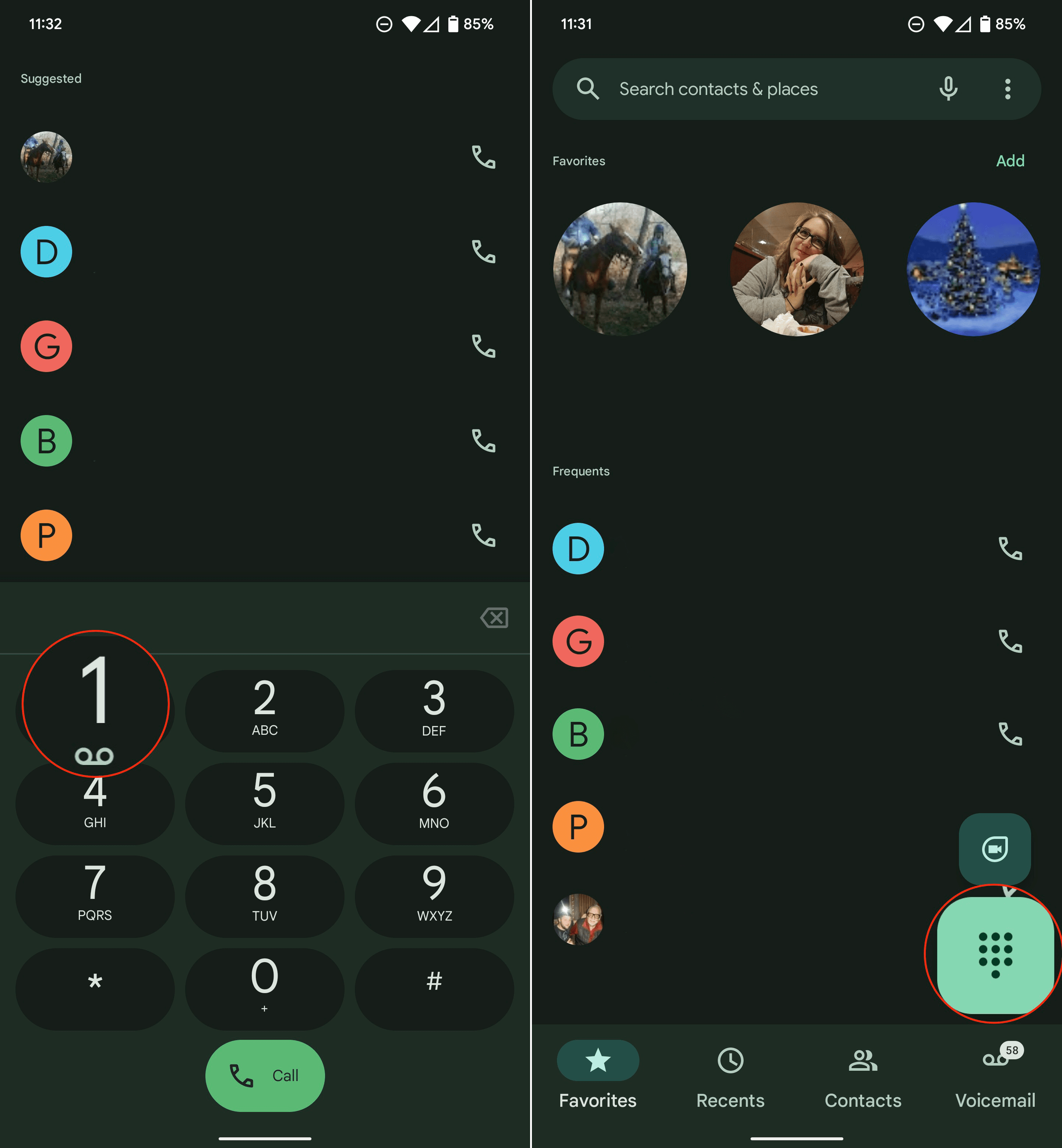
- Open the Phone app on your Android phone.
- Tap the Dialpad icon in the bottom toolbar.
- Press and hold on to the 1 button on the dial pad.
- When prompted (and if necessary), enter your voicemail password.
Regardless of which method you decide on using, the automated system provides you with several different options in the call. You are prompted to listen to different messages, delete voicemails, or save voicemails so that you can listen to them later.
Conclusion
You might be surprised to notice that we didn’t touch on setting up Visual Voicemail on your Android phone. The reason for this is because each carrier uses a different Visual Voicemail app, is actually just a few button taps before it’s made available. With Visual Voicemail, you can usually read a transcript of the voicemail that was just left. With this feature available, you can get an idea of what the call was about, without needing to actually pick up your phone and listen to the messages.
Google’s own Phone app already has this feature built-in, as you just tap the voicemail in the list, and a transcript appears. Google also provides different tools that you won’t find on other Android phones. These include “Flip to Shh” and “Call Screening” which are two invaluable tools to combat needing to pick up your phone every time it rings.