Cooking up a storm in the kitchen or working outdoors can be more enjoyable if you can also jam your music on your laptop. The only problem is the battery power is limited, and closing a laptop can put it into sleep mode automatically.
What can you do?
Thankfully, playing music with a closed laptop is not only possible but very easy to set up. This article will be your guide.
Contents
Many Ways to Play Music With a Closed Laptop
There are many ways to keep your beats going even when your laptop screen is closed. We’re going to be suggesting a few methods below. Depending on your setup and purpose, you should be able to find the right solution for you:
Change the Power Options (Windows)
Let’s start with the easiest solution. By default, closing your laptop lid will put your machine to sleep. You can change this and keep your system running even if your machine is closed. Here’s how:
1. Open the Control Panel by typing it into the Search Bar.
2. In the window that pops up, scroll down to “Power Options” and select it.
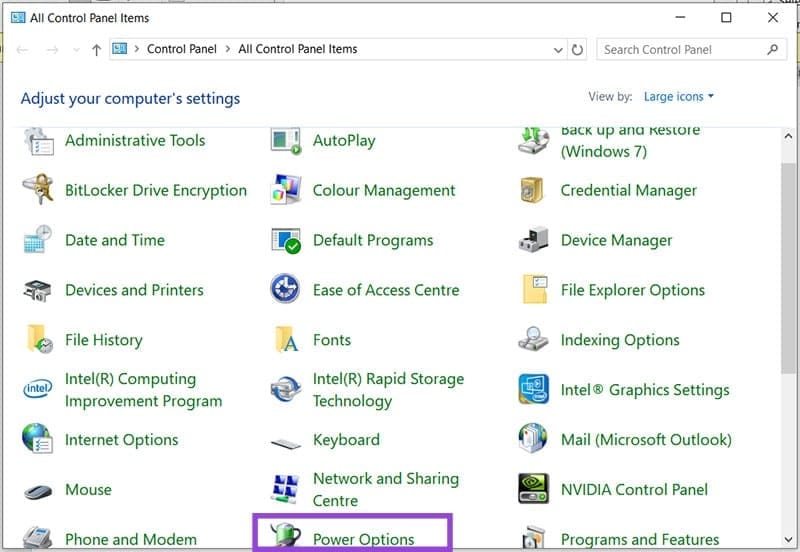
3. In the Power Options menu, click “Choose what closing the lid does” from the sidebar.

4. You should see two dropdown menus next to “When I close the lid.” Choose the “Do nothing” option to keep your machine running while plugged in or on battery power.
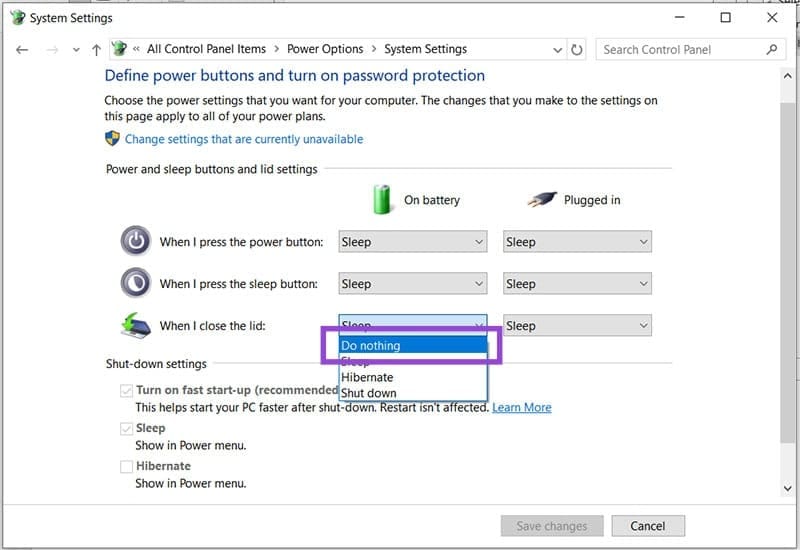
5. Click the “Save changes” button once finished to finalize.
With these changes in place, you’ll be able to save battery power by turning off the screen and using the power you save to play even more music.
Using an External Monitor (Windows and Mac)
If your laptop is hooked up to an external monitor, closing it doesn’t have to mean your computer will enter Sleep mode automatically. You can still enjoy your music and have access to your mouse on the second display. For some laptops, this trick relies on resetting your power options (covered above), so be sure to follow those steps first.
Here’s how to set it up on Windows:
1. Ensure your external display is connected via Wi-Fi or HDMI cable.
2. Bring up the “Project” menu by hitting (Win + P) on your keyboard.
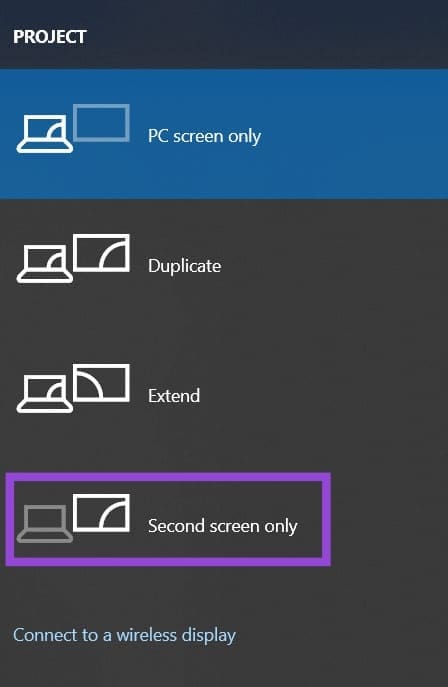
3. Choose either the “Duplicate” or “Second Screen Only” option to maintain control of your laptop when the lid is closed.
4. Close your lid and you should still be able to play music.
If you’re a Mac user, your machine will stay on automatically once connected to an external monitor. Just connect the two and you’re good to go.
Terminal Command (Mac)
For Mac users, keeping music playing with a closed laptop is a bit less straightforward, but not impossible. You’ll need to disable Sleep Mode manually with Terminal. Here’s how.
1. Open Terminal via Finder, then go to “Applications.”
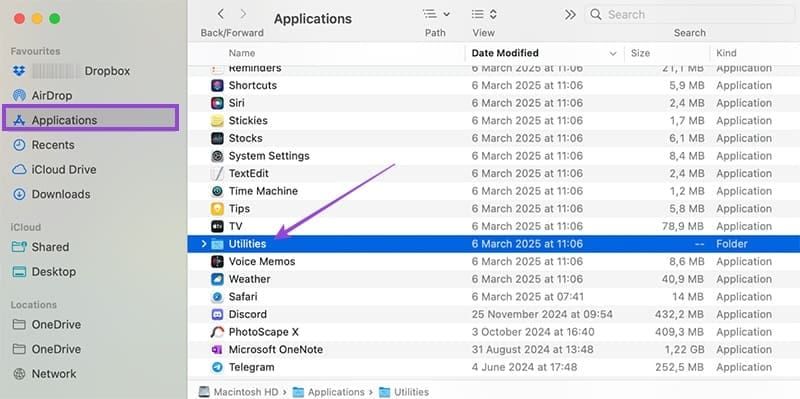
2. Click on “Utilities” and then open Terminal in the new window.
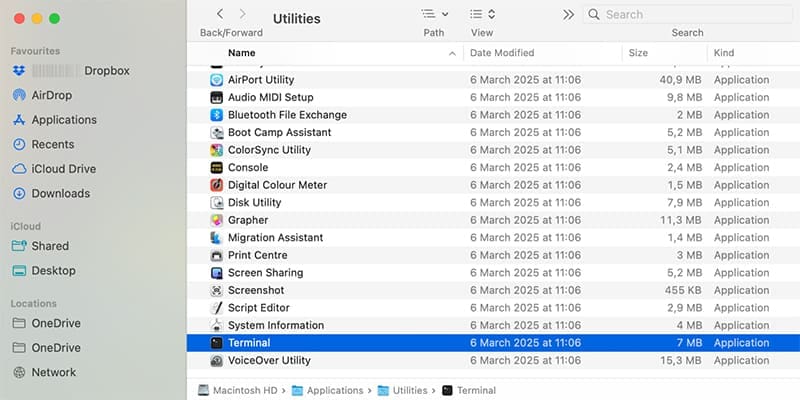
3. In the Terminal app, type the following: “sudo pmset -a disablesleep 1”
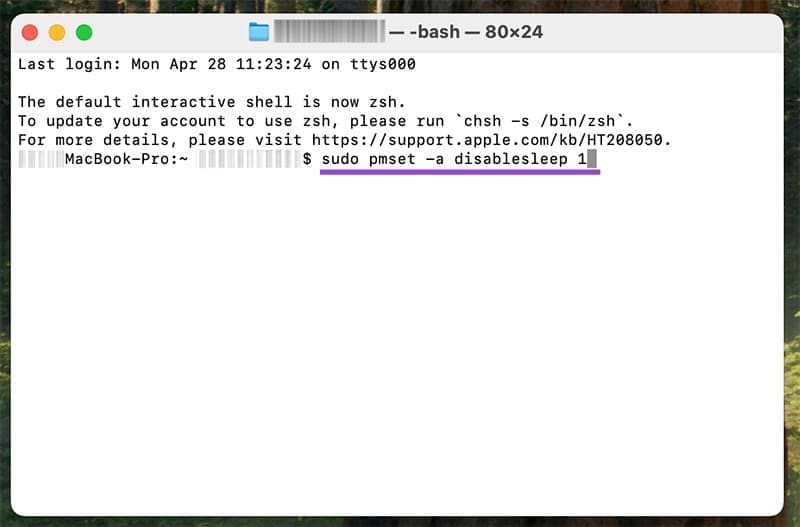
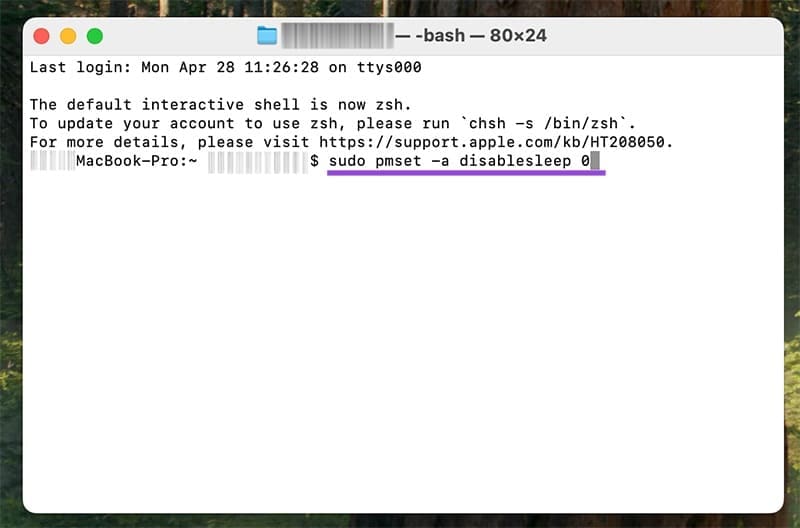
Your Mac won’t enter Sleep Mode automatically now. You can disable this at any point by entering Terminal again and entering “sudo pmset -a disablesleep 0”.
Third-Party Apps (Mac)
If the above solution seems a bit complicated, don’t worry. There are also plenty of third-party apps that will keep the tunes playing and your laptop running. Amphetamine and InsomniaX are two popular examples. Better yet, you can even set the length of time you’d like to keep your music session running if battery life is a concern.