In general, you should keep your Windows updated to the most recent version. But on some occasions, your Windows Update window might keep telling you that you’re not using the latest build yet insist that there are no more updates to download and install. This can be complex issue that might not even get solved until the next stable Windows build, depending on your hardware.
Here’s what to do for a potential “Windows Update you’re not up to date” fix.
Contents
Fix 1 – Windows Update You’re Not Up to Date Fix via Ethernet Settings
One of the simplest (and most common) reasons why you might be getting the error message is if you’re using a metered connection. This tends to happen if your internet plan has a monthly limit, even if it’s much larger than most users will go through in a given month. However, you might’ve also switched to a metered connection temporarily (such as on vacation) and the setting never went away. It’s a quick way to get a Windows Update “you’re not up to date” fix.
Step 1. Open Internet settings. You can do this by going to Settings and selecting “Network & internet” on the navigational panel on the left.
Step 2. Go to the network type you’re connected to (“Wi-Fi” or “Ethernet”).
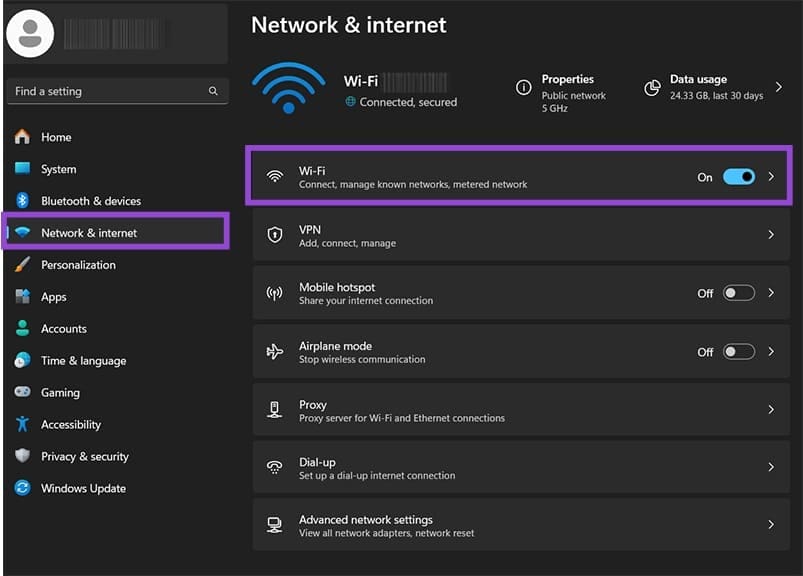
Step 2b. If you’re using Wi-Fi, click on the name of the network you’re using (the second option).
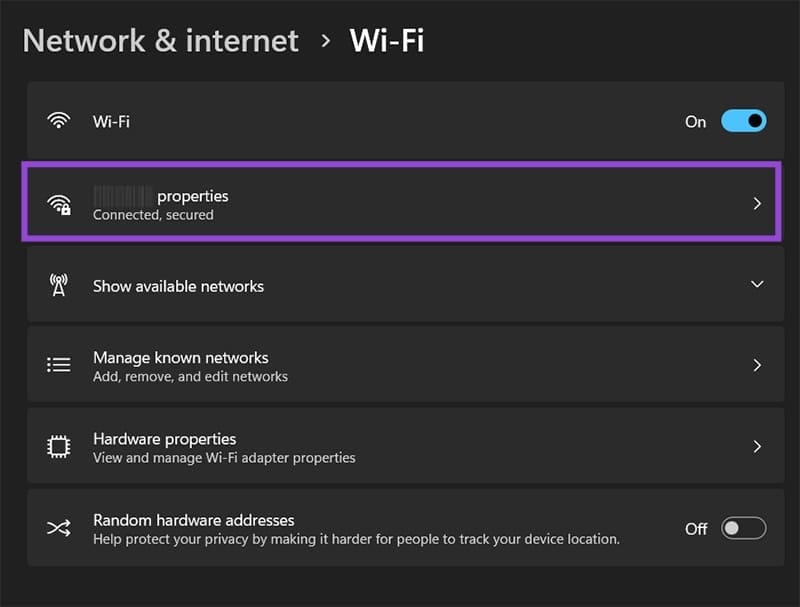
Step 3. Uncheck “Metered connection.” If you use this for an Ethernet connection, it will disable metered connections on all future networks, but Wi-Fi networks might need to be set up individually.
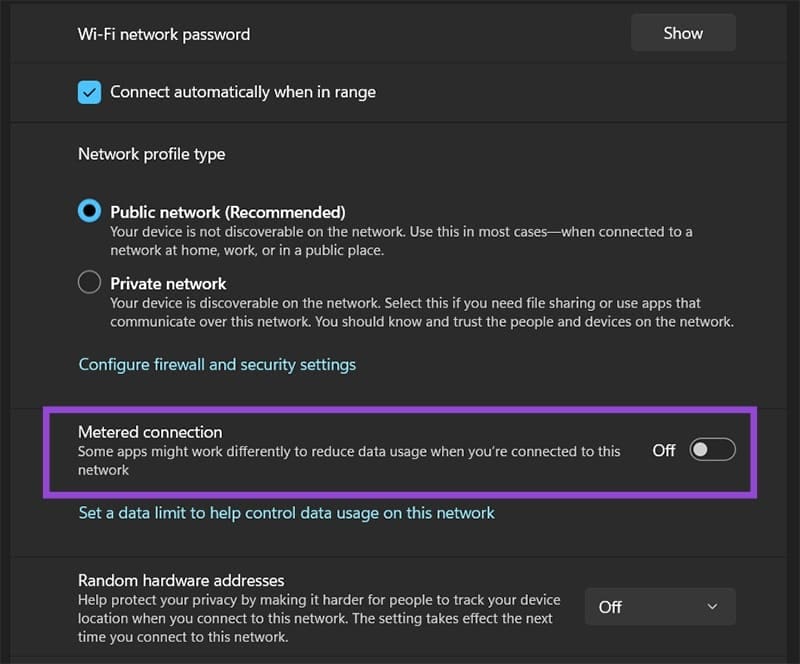
Alternatively, you can force Windows Update to bypass metered connection restrictions. However, beware of using this option if you’re using a limited connection (such as through your phone plan).
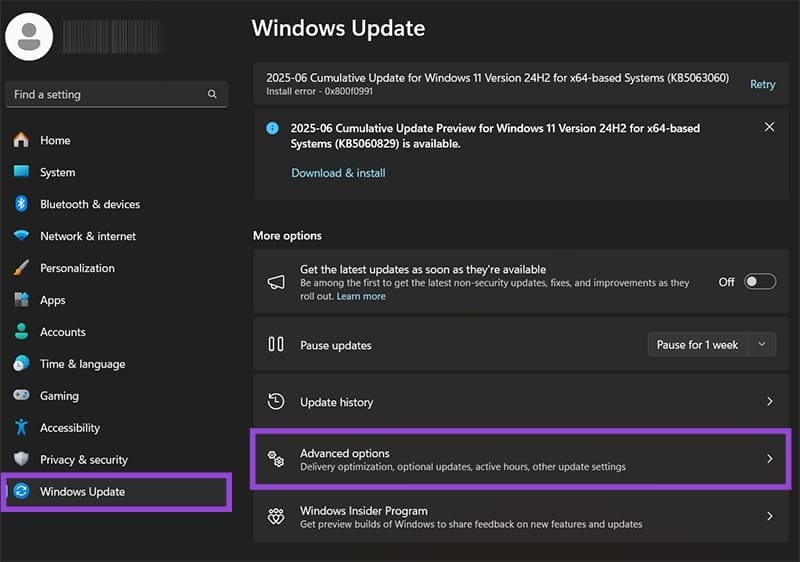
Step 4. Go to “Windows Update” in the Settings navigation pane.
Step 5. Select “Advanced options.”
Step 6. Toggle “Download updates over metered connections” to ON.
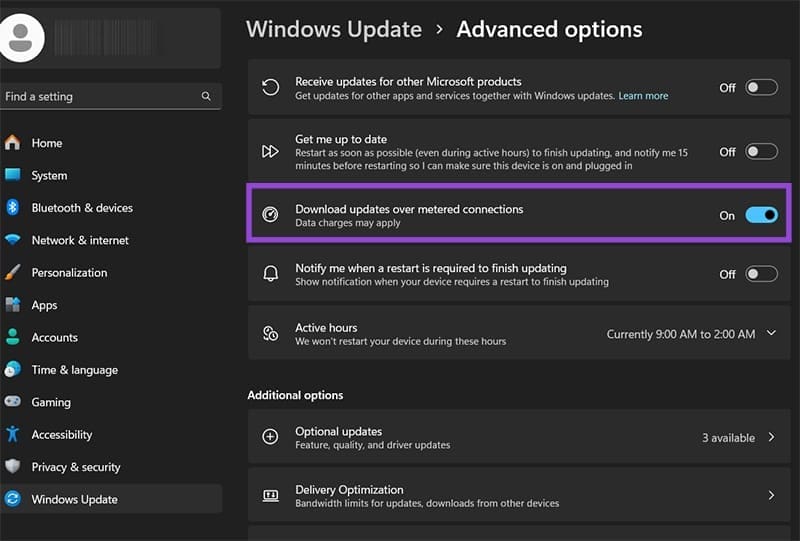
Step 7. Go back to Windows Update and try to update your PC again.
Fix 2 – Windows Update You’re Not Up to Date Fix via Troubleshooter
Like many Windows utilities, the Updater comes with its own troubleshooter that can fix minor issues. However, it’s not located in Windows Update settings themselves and needs to be accessed separately.
Step 1. Open Settings.
Step 2. Search for “Troubleshoot” via the search bar on the top-left, then select “Troubleshoot settings.”
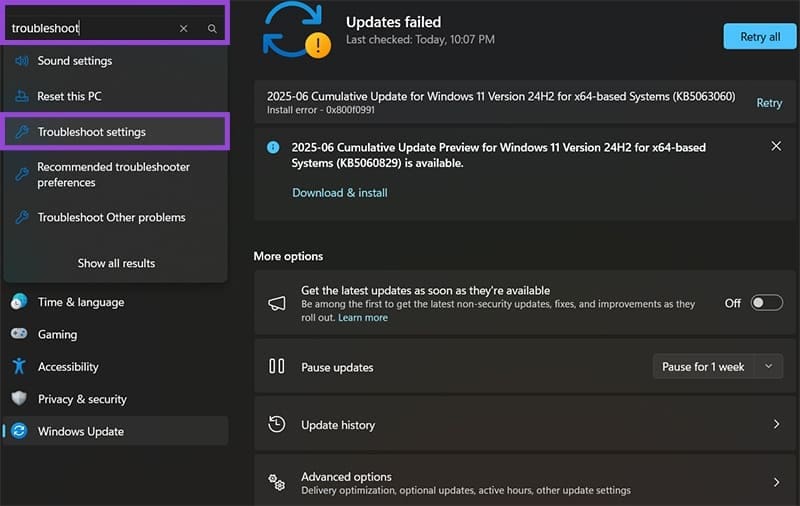
Step 3. Click on “Other troubleshooters.”
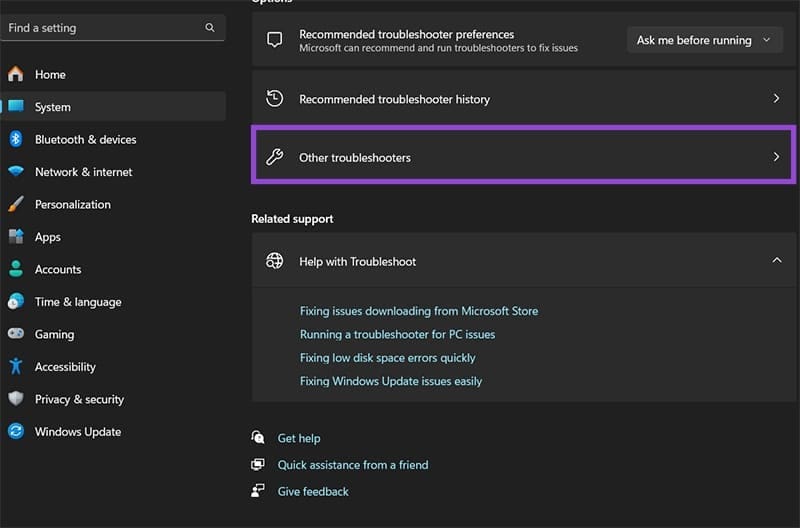
Step 4. Find the option “Windows Update” and click on “Run” for it.
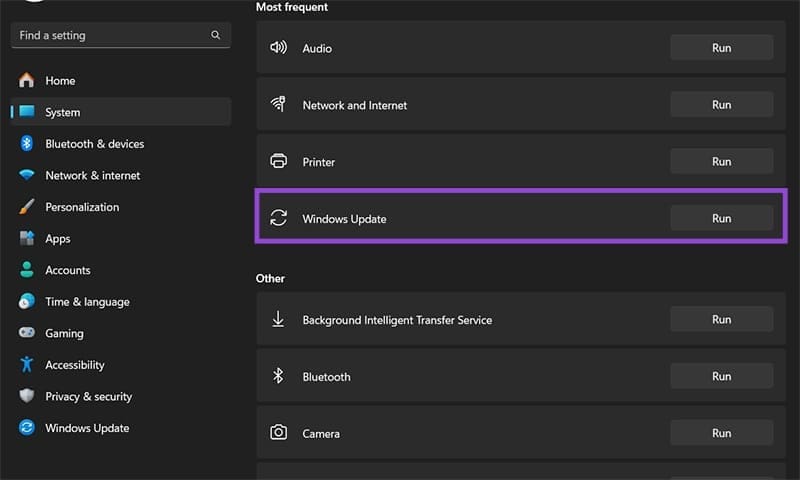
Step 5. Follow the instructions in the troubleshooter and apply any recommended fixes (if they seem reasonable).
Step 6. You may need to restart the PC for the fixes to take effect.
Fix 3 – Windows Update You’re Not Up to Date Fix via Manual Update Utility Reset
If the troubleshooter can’t find anything wrong, you can reset the entire Windows Update utility to help it along.
Step 1. Open the Command Prompt as an administrator (you can search for it via the search bar).
Step 2. One by one, enter the following commands, hitting “Enter” with each one (if your Windows system is installed on a drive other than C, change it to the appropriate drive for the fifth and sixth commands):
- net stop wuauserv
- net stop cryptSvc
- net stop bits
- net stop msiserver
- ren C:\Windows\SoftwareDistribution SoftwareDistribution.old
- ren C:\Windows\System32\catroot2 catroot2.old
- net start wuauserv
- net start cryptSvc
- net start bits
- net start msiserver
Step 3. Restart your PC, which will restart the aforementioned utilities.
Fix 4 – Installing Updates Manually
You can manually force overwrite updates by downloading and applying the installation file from Microsoft.com.
Step 1. Go to the Microsoft Update Catalog page.
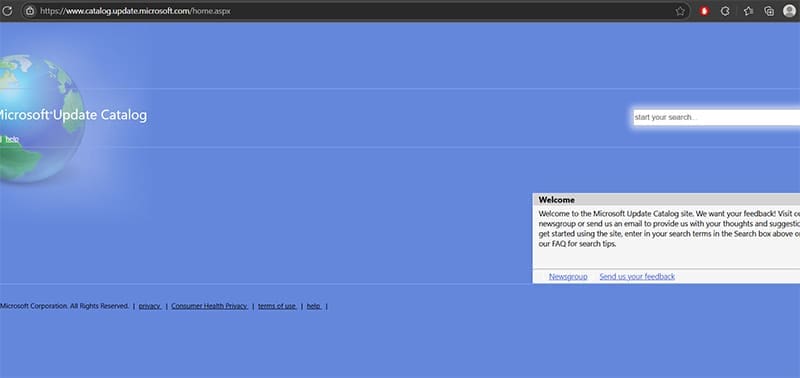
Step 2. Enter the current build of Windows you’re using into the search bar (you can find that info in the “About” page in System Settings). Alternatively, search for the next version by increasing the version number before or after the “H” by one.

Step 3. You’ll need to narrow the search by appending “cumulative update.”
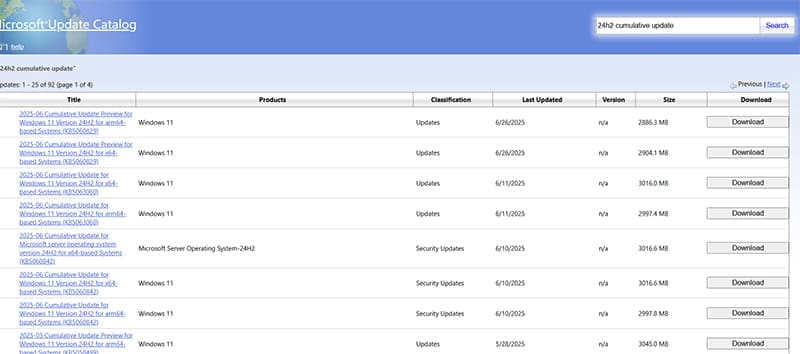
Step 4. In most cases, you need to download the “Cumulative Update for Windows 11 Version XXXX for x64-based Systems.” However, this can be different if you’re using an ARM64 system or Windows Server OS.
Step 5. Run the file you downloaded, then follow the instructions.
Other Fixes
If nothing seems to work, you have a few options:
- Check and temporarily disable your antivirus software. Third-party software might be blocking Windows Update from connecting to download servers.
- Wait for the next major update to roll out. In most cases, you shouldn’t get extreme security issues between major versions, so long as you have turned on Windows Defender and an antivirus.
- Perform a clean boot of Windows. You’ll need to back up your data for this one.