Windows Updates are a vital part of keeping your PC secure and up to date. If your computer won’t install the latest update and lists Error Code 0x800f0991 as the reason, then the problem lies in missing or corrupted files, which may be on your system or as part of the download.
In this article, we’re going to give you a few pointers to try to get your PC updating normally once again.
Contents
Error 0x800f0991 Fix for Windows Update
As with all errors regarding installing Windows Updates, the solution usually involves fixing missing or corrupted files on your PC or the update download data. Let’s take a look at how to set things right again.
Run the Update Troubleshooter
One of your first stops should be the Windows Update Troubleshooter. This is a good way for the system to identify any problems with the update and try a fix. Here’s what to do:
Step 1. Open Settings (Win + I) and select “System.”
Step 2. Scroll down and select “Troubleshoot.”
Step 3. Click on “Other troubleshooters,” and you’ll see a list of various system troubleshooters.
Step 4. Choose the “Windows Update” troubleshooter and hit the “Run” button.
Step 5. The troubleshooter will run and might suggest fixes. Afterwards, try running the update again.
Restart the Update Tool
You can also try getting updates to work by resetting the components involved. The fastest and most efficient way to do this is through the Command Prompt. Here’s how:
Step 1. Open up the Run dialog (Win + R) and type “cmd” before pressing (Ctrl + Shift + Enter) to run as Administrator.
Step 2. You first need to stop all running Update components. Type the following, pressing “Enter” after each one: “net stop wuauserv,” “net stop cryptSvc,” “net stop bits,” “net stop msiserver.”
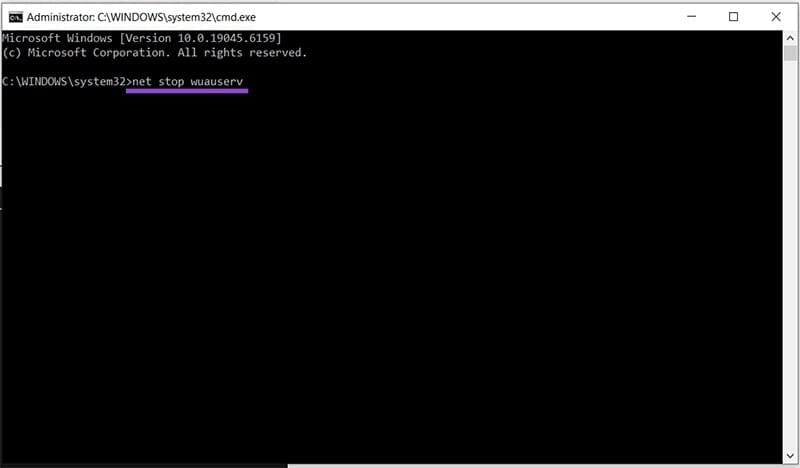
Step 3. You need to delete the Update storage folders so Windows can recreate them. Navigate to “C:\Windows\SoftwareDistribution” and select all files.
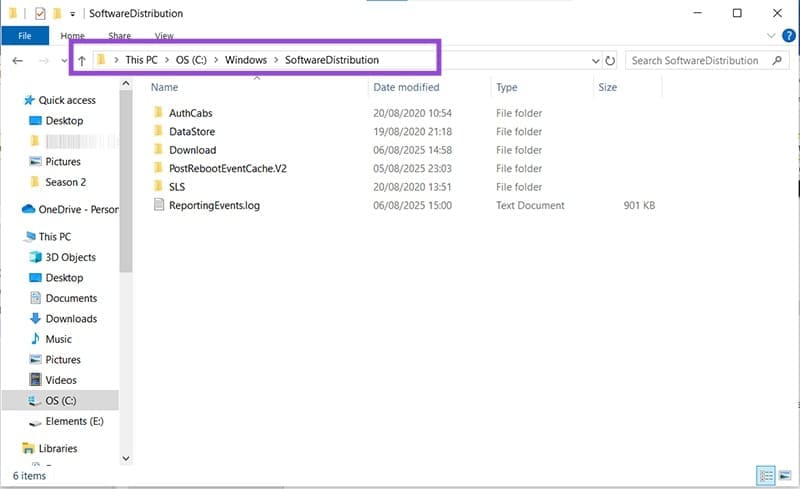
Step 4. Delete all files, and Windows will recreate them after a reboot.
Step 5. Go back to Command Prompt and restart all the Update services by typing the following and pressing “Enter” after each one: “net start wuauserv,” “net start cryptSvc,” “net start bits,” “net start msiserver.”
Step 6. Restart your machine to recreate the Update directories and see if the update will start.
Clean Up Existing Update Files
Disk Cleanup can also help you remove Update files that may be incomplete or corrupted, and which prevent you from moving forward. Here’s what to do:
Step 1. Open Disk Cleanup from the search bar and right-click on it to run as Administrator.
Step 2. Select your main drive that Windows is installed on and click “OK.”

Step 3. The utility will first scan your drive to calculate how much space can be freed, and then give an estimated time for the duration of the process.
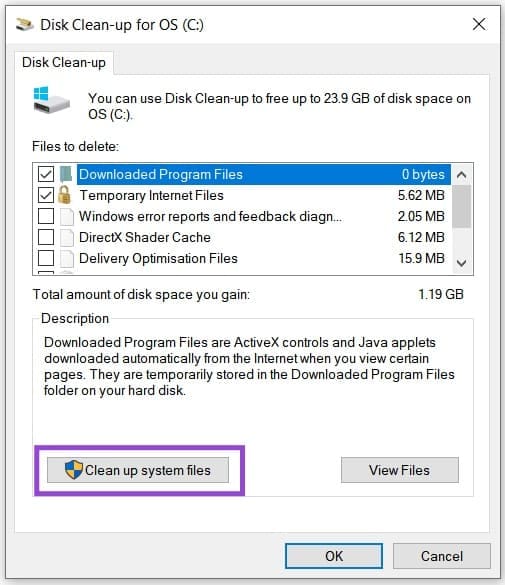
Step 4. Once open, click the “Clean up system files” button. You’ll need Admin privileges to proceed.
Step 5. The drive will scan again. Check the “Windows Update Clean-Up” (and any other files you want to go), then hit “OK.”
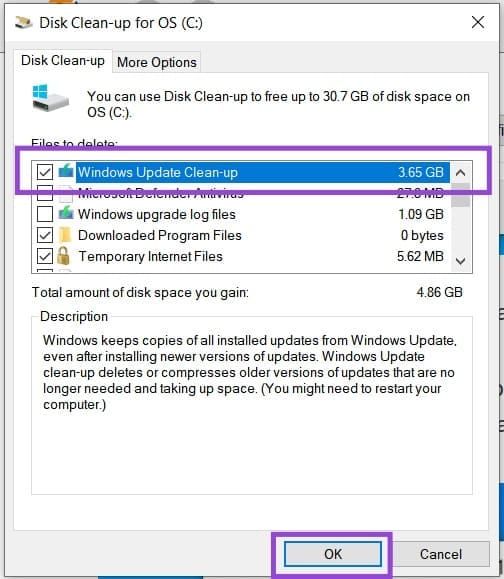
Step 6. The utility will then clear your cache.
Scan Your Disk
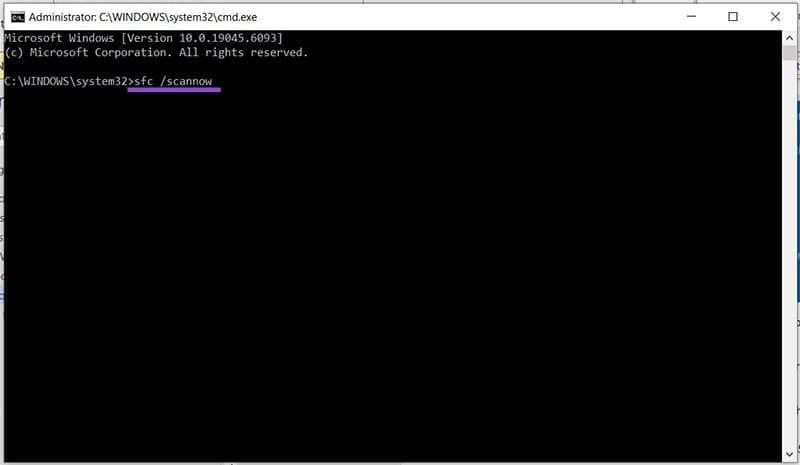
The System File Checker (SFC) scan is a handy catch-all way to fix system problems and corruption. It might also help with Error 0x800f0991:
Step 1. Open the Run dialog (Win +R) and type “cmd” in the box.
Step 2. Press (Ctrl + Shift + Enter) to run as Administrator.
Step 3. In the Command Prompt window, type “sfc /scannow” to begin the check.
Step 4. Windows will scan your disk and point out any problems.