Upgrades can be a pain and ruin a good day. But when you experience an error during the upgrade process, that pain becomes a full-blown headache. Case in point: Error Code 0x8007007f. This error, encountered during a Windows 11 update or the move from Windows 10, has a few possible causes.
Don’t worry, though, we’ve got just as many fixes to help.
Contents
What Causes This Error Code?
Error Code 0x8007007f has been acknowledged by Microsoft and can affect several users, but always during some upgrade process. Reports have been received from users upgrading to Windows 11, updating to 24H2, or updating Windows Server.
What exactly causes it, though? A few things, actually, including:
- A lack of storage space on the OS hard drive
- System file corruption or outdated drivers, particularly GPU drivers
- Secure Boot and TPM 2.0 being disabled
- A lack of permissions to attempt the upgrade, e.g., admin privileges or UAC permissions
- Using an outdated Windows version, a few upgrades behind
Let’s take a look at what to do when faced with this error.
Finding the Right Windows 11 Error Code 0x8007007f Fix for You
For an error code with so many potential causes, it’s probably best to test all these fixes until your issue is resolved. Let’s get started:
Microsoft on the Case
It’s worth noting before we begin that Microsoft officially fixed the error code as of August 15, 2025. If the error code does persist, it’s recommended that you simply retry the upgrade process. If that doesn’t resolve the issue, then proceed with the other methods below.
Ensure You Have Enough Space
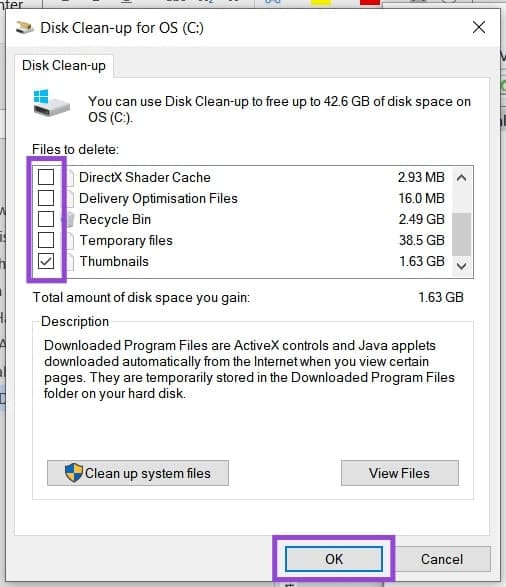
A very common cause of this error is a lack of hard drive space. Upgrades and updates need sufficient room to download and install, and a shortage of space might trigger Error Code 0x8007007f. It’s always a good idea (even beyond update installation) to leave at least 50GB free on your OS hard drive to keep it running optimally.
Start by clearing your Recycle Bin, deleting unnecessary files, and moving folders to external drives. You can also use Disk Cleanup to remove temporary files.
Try Without Antivirus
An overzealous antivirus program might see the upgrade and installation process as a potential threat and interfere. If you suspect this might be the case, try disabling your antivirus temporarily and retry the update.
Run the Installation Process as an Admin
To ensure you get off on the right foot with your upgrade, it’s vital to let Windows know you have the right permissions in place. In Windows 11, you can run the Installation Assistant as an admin, as you would any other app. To do this, simply right-click the icon and select “Run as Administrator” from the context menu.
Ensure Your Drivers Are Up to Date
Installing the latest drivers is a good way to ensure your hardware runs efficiently with the latest software and any potential system upgrades. Drivers can be updated in the Device Manager or downloaded from the manufacturer’s website. A big reason for Error Code 0x8007007f is outdated graphics drivers. To ensure you have the latest version:
Step 1. Open the Run Dialog (Win + R) and type “devmgmt.msc” and press “OK.”
Step 2. Navigate down to “Display Adapters” and click it to expand.
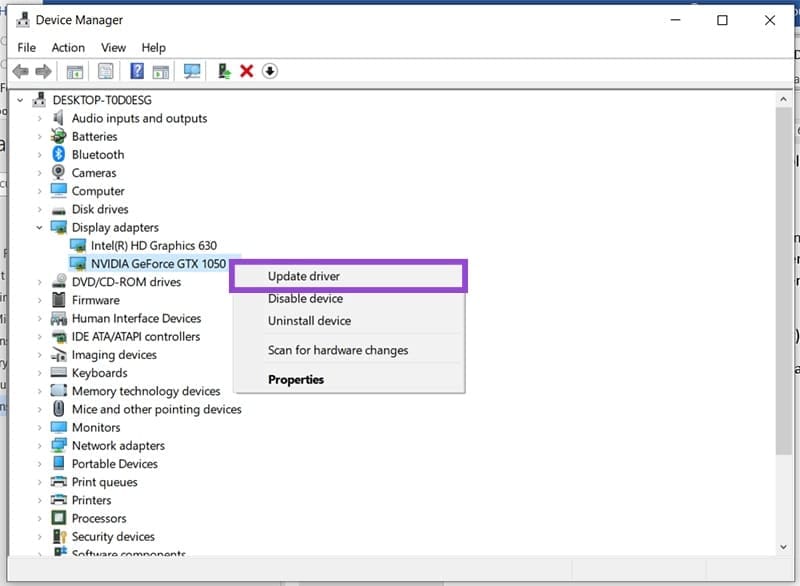
Step 3. Right-click your graphics card (both if you have two) and click “Update Driver.”
Step 4. Click “Search automatically for drivers” and allow your computer to search.
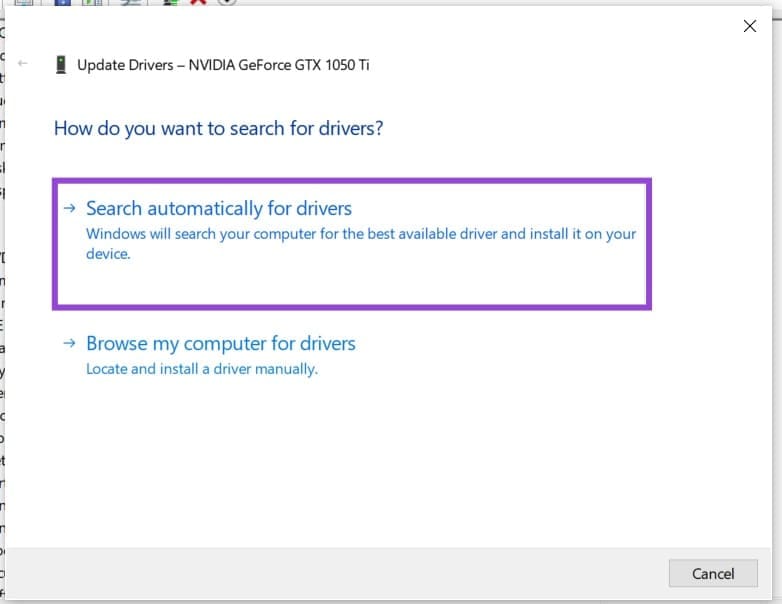
Step 5. Install the latest drivers. If you already have the latest drivers installed, you’ll see a message telling you this.
If this still doesn’t help, you can try uninstalling the driver; your computer will automatically reinstall the latest driver upon restart.