Getting a display notification where the printer is paused and can’t resume is a common issue that prevents your documents from printing. It can happen when Windows can’t get information from your printer on its current status to add more items to the print queue and has been known to happen to any printer model (with HP printers seeming to be more affected).
Here are some of the most common ways to get the printer paused error fix.
Contents
Fix 1 – Disable Pause Printing
The most straightforward solution is to manually resume printing by disabling the pause setting. This might have been activated accidentally or due to a system glitch.
Step 1. Press “Windows + I” to open Settings.
Step 2. Go to the “Bluetooth & devices” tab (“Devices” in Windows 10) in the left sidebar.
Step 3. Select “Printers & scanners” in the right pane.
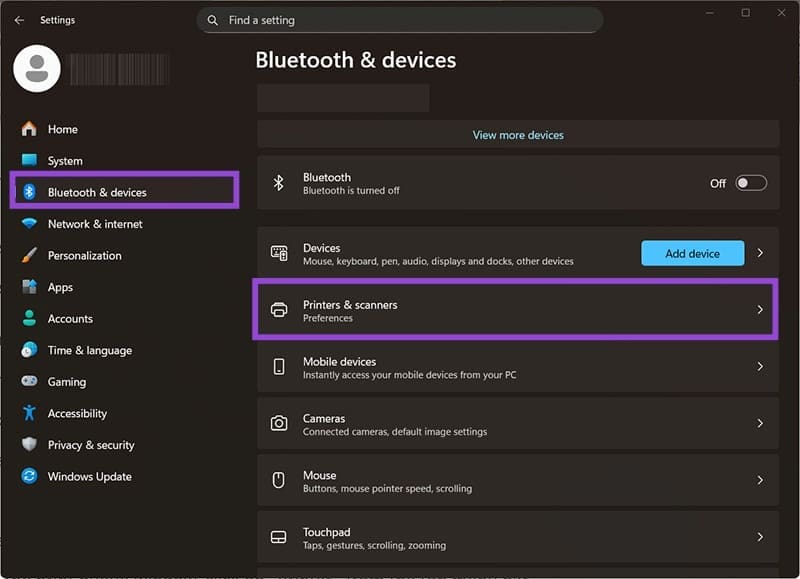
Step 4. Select your printer from the list, then click on “Open print queue.”
Step 5. In the print queue window, click on “Printer” from the top menu bar.
Step 6. If you see a checkmark next to “Pause Printing,” click on it to uncheck and resume printing.
Step 7. Close the window and try to print the page again.
Fix 2 – Restart the Print Spooler Service
The print spooler service manages the print queue between your computer and printer. Restarting this service essentially clears the queue and prompts the printer to ask for it from the PC.
Step 1. Press “Windows + R” to open the Run dialog.
Step 2. Type “services.msc” and hit “Enter” to open the Services window.
Step 3. Scroll down and locate “Print Spooler” in the list of services.
Step 4. Right-click on “Print Spooler” and select “Restart” from the context menu if the service status is “Running” or “Paused.”
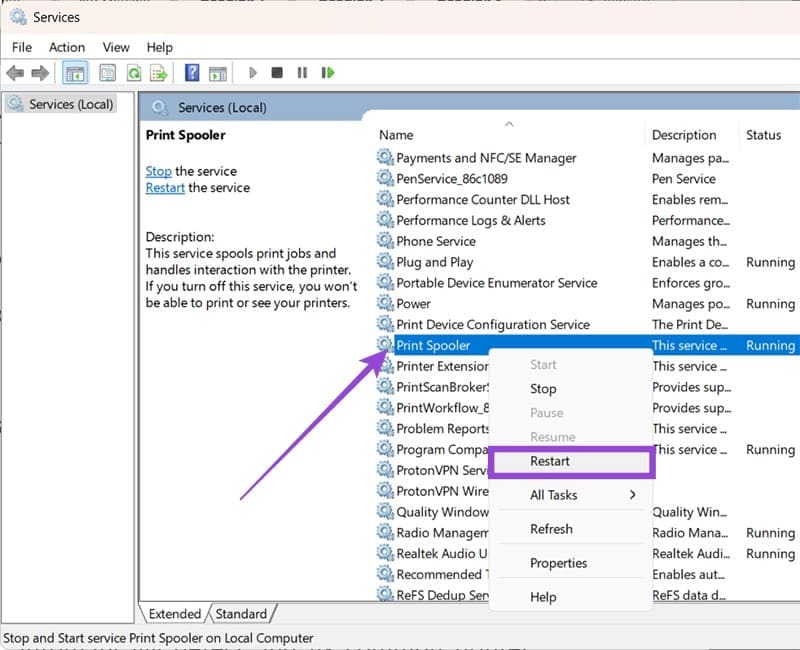
Step 5. If the service shows as “Stopped,” select “Start” instead.
Step 6. Wait for the service to fully restart, then close the Services window.
Step 7. Try printing again to see if the issue is resolved.
Fix 3 – Use the Built-in Printer Troubleshooter
Windows includes a dedicated troubleshooter that can automatically detect and fix common printer problems, including paused status issues.
Step 1. Open Settings.
Step 2. Go to “System” and scroll down and select “Troubleshoot” from the list. Choose “Other troubleshooters.” In Windows 10, this is located in “Update & Security.”
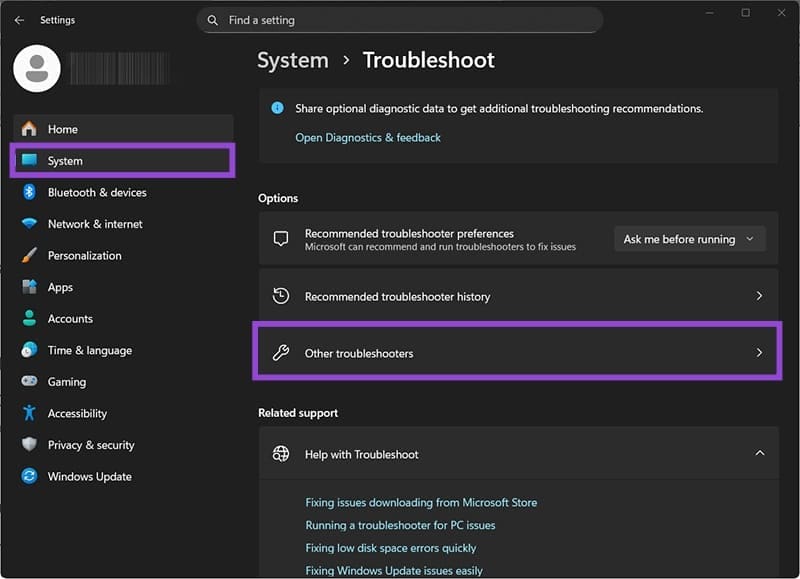
Step 3. Find “Printer” in the list (it should be in the recommended options) and click “Run” next to it.
Step 4. The troubleshooter will scan for printer-related issues and attempt to fix them automatically. Follow any on-screen instructions and select your printer if prompted.
For best results, you may need to manually restart the printer and re-run the troubleshooter.
Other Fixes for Printer Paused and Can’t Resume
If none of the methods work, try these additional troubleshooting steps:
- Restart both your computer and printer to refresh all connections and clear temporary glitches.
- Check physical connections by unplugging and reconnecting USB cables, or verify your wireless connection is stable.
- Clear the print spooler folder manually by stopping the print spooler service, navigating to C:\Windows\System32\spool\PRINTERS, deleting all files in this folder, then restarting the spooler service.
- Set your printer as the default by going to “Printers & scanners” in Settings and clicking “Let Windows manage my default printer” or manually selecting that printer as the default.
- Check for printer-specific software (or firmware updates) from your manufacturer’s website that might provide better driver support than generic Windows drivers.