OneDrive now comes practically preloaded on Windows 11. And while you might want to occasionally make it stop syncing a specific folder, it’s still a great backup tool for your vital files. But you might still encounter issues where you can’t turn on or update the app.
This can prevent you from accessing stored files directly on the PC. Here’s how to get the error code 0x80070005 fix for OneDrive.
Contents
Fix 1 – Fix OneDrive Error 0x80070005 by Forcing Updates
If the app doesn’t turn on, it could be due to it detecting that it’s running an old version but unable to update the app through usual means. You can force the operating system to perform the update check again, which can jumpstart the automatic update process.
Step 1. Go to Windows Updates (you can search for “update”) and select to search for available updates.
Step 2. If any updates are found that aren’t full Windows release versions (i.e. cumulative updates), install them. Cumulative updates are unlikely to help you with out-of-date apps and can take longer, but they also might be able to help, so it’s up to you.
Step 3. Wait for the updates to complete and restart your PC if needed.
Step 4. Open the Run dialog with “Windows + R.”
Step 5. Paste the following command into the textbox and hit “Enter:”
%localappdata%\Microsoft\OneDrive\update

Step 6. You will get a folder in File Explorer. If it contains the file “OneDriveSetup.exe,” launch it. If not, try applying a cumulative Windows update or running the update program until the system detects it’s fully updated.
Fix 2 – Fix OneDrive Error 0x80070005 for Work or School Accounts
If you’re using a work or school account, OneDrive might be trying to put a folder where the Group Policy is preventing it (Known Folder Move error). Note that the Group Policy Editor is not available on Windows 11 Home, so there’s pretty much no chance of this happening on these systems without prior modifications.
If you’re not the administrator for the PC you’re using, consult the IT department which can access it. Otherwise, you’ll need to prevent from moving certain folders to prevent this error in the future.
Step 1. Open the Run dialog with “Windows + R.”
Step 2. Type in “gpedit.msc” and hit “Enter.”
Step 3. Go to the following navigation path in the editor: User Configuration > Administrative Templates > Desktop.

Step 4. On the pane on the right, select “Prohibit User from manually redirecting Profile Folders.”
Step 5. Change the setting to “Not Configured” or “Disabled.”

Step 6. Click on “OK” and exit the editor.
Fix 3 – Reset or Reinstall OneDrive to Get the Error Code 0x80070005 Fix
Resetting OneDrive will force it to fetch new update and file data, which can solve some issues.
Step 1. Open the Run dialog.
Step 2. Type in “wsreset.exe” and hit “Enter” or click on “OK.”
Step 3. You’ll get a command prompt that opens and closes while the system works in the background and a page for Microsoft Store. Close these.
Step 4. In the Run dialog, copy the following line and hit “Enter:”
%localappdata%\Microsoft\OneDrive\onedrive.exe /reset
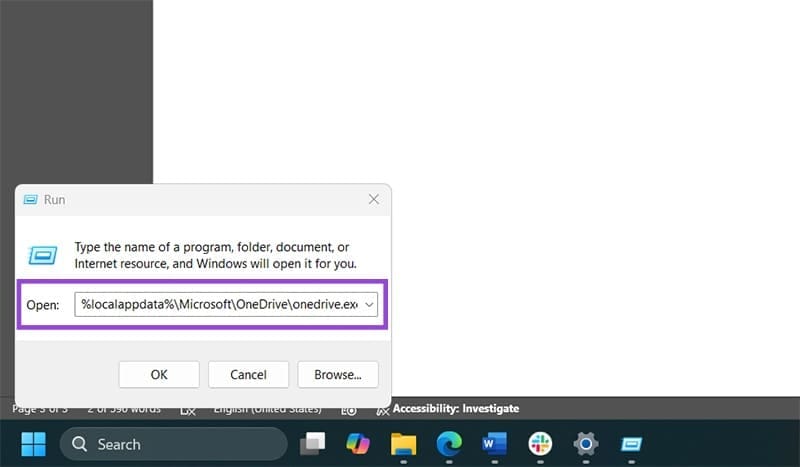
If you get an error message, use the following alternatives until you don’t get an immediate error:
C:\Program Files\Microsoft OneDrive\onedrive.exe /reset
C:\Program Files (x86)\Microsoft OneDrive\onedrive.exe /reset
Step 5. OneDrive will start resetting, and you’ll get a File Explorer window open on your main OneDrive folder, where each file will start to resync.
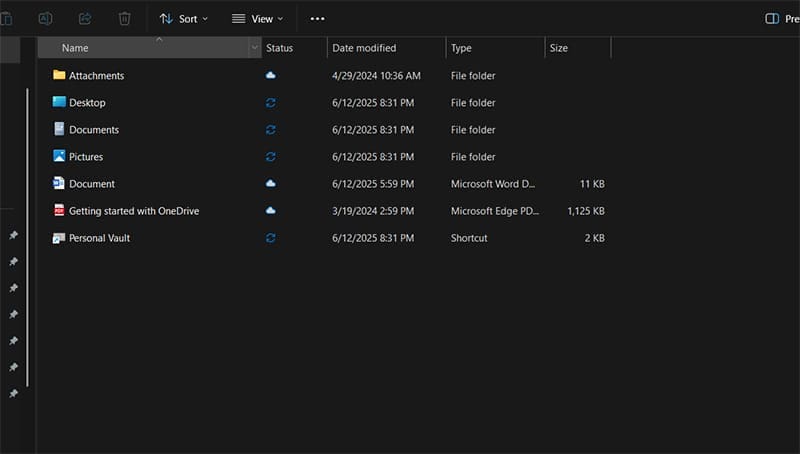
You shouldn’t lose any data by performing a reset. If this doesn’t work, you can uninstall and reinstall OneDrive, which works just like uninstalling any other program.