Error Code 0x800705b4 is one of the most common issues that users encounter when updating Windows 11 (and Windows 10, for that matter). Let’s take a look at what causes the issue and how to fix Error Code 0x800705b4 in Windows 11.
Contents
What Causes Error Code 0x80070 in Windows 11?
There are several possible causes for the error, including:
- A timeout during the update
- Corrupted update files
- Missing or corrupted system files
- Interference from your antivirus software or firewall
- Network issues like high latency, bandwidth restrictions, or DNS delays
- Low storage on the system drive or high CPU/memory usage
How to Fix Error Code 0x800705b4 in Windows 11
Try the following fixes one at a time. After each, check whether you can now update Windows without encountering the error. If the error persists, move on to the next fix.
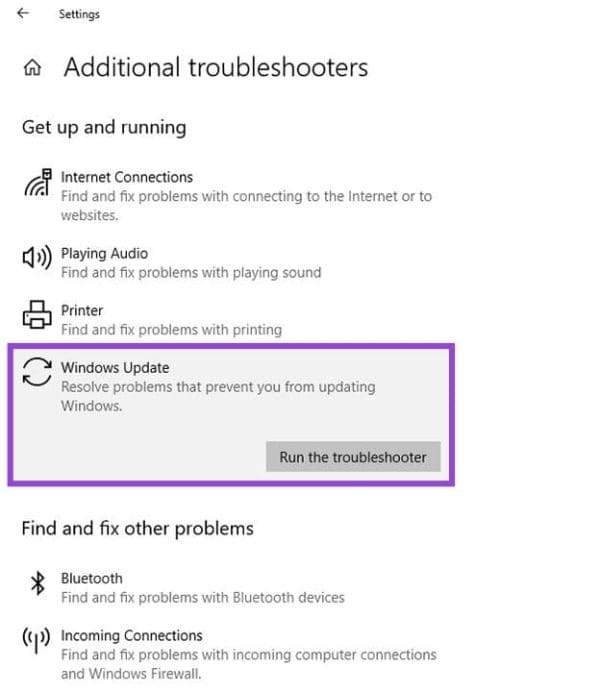
Run the Windows Update Troubleshooter
Step 1. Open Settings.
Step 2. Navigate to System > Troubleshoot > Other troubleshooters.
Step 3. Select and run Windows Update.
Reset Windows Update Components
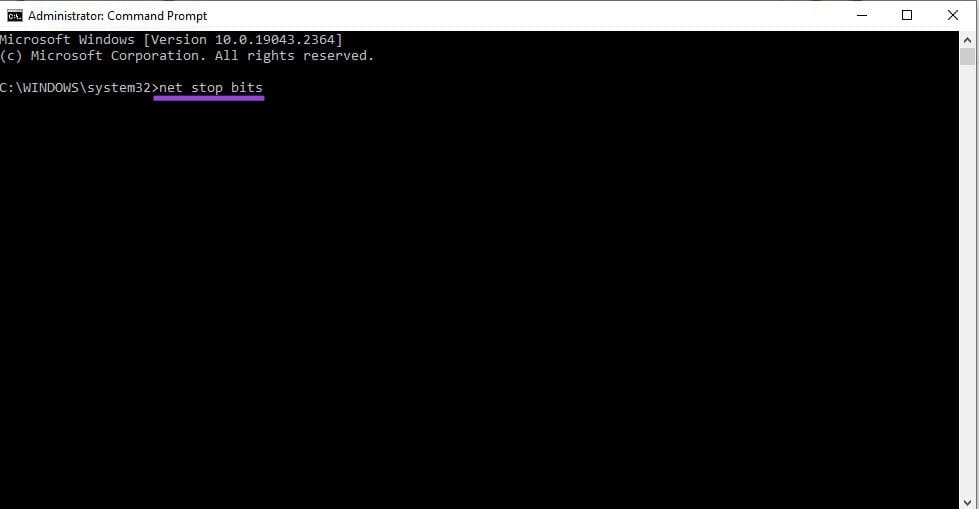
Step 1. Open Command Prompt as Administrator (type “cmd” into the Windows search box and select “Run as administrator”).

Step 2. Enter the following commands and press Enter after each:
- net stop bits
- net stop wuauserv
- net stop appidsvc
- net stop cryptsvc
Step 3. In File Explorer, navigate to C:\Windows\SoftwareDistribution\Download.
Step 4. Delete all files in the folder.
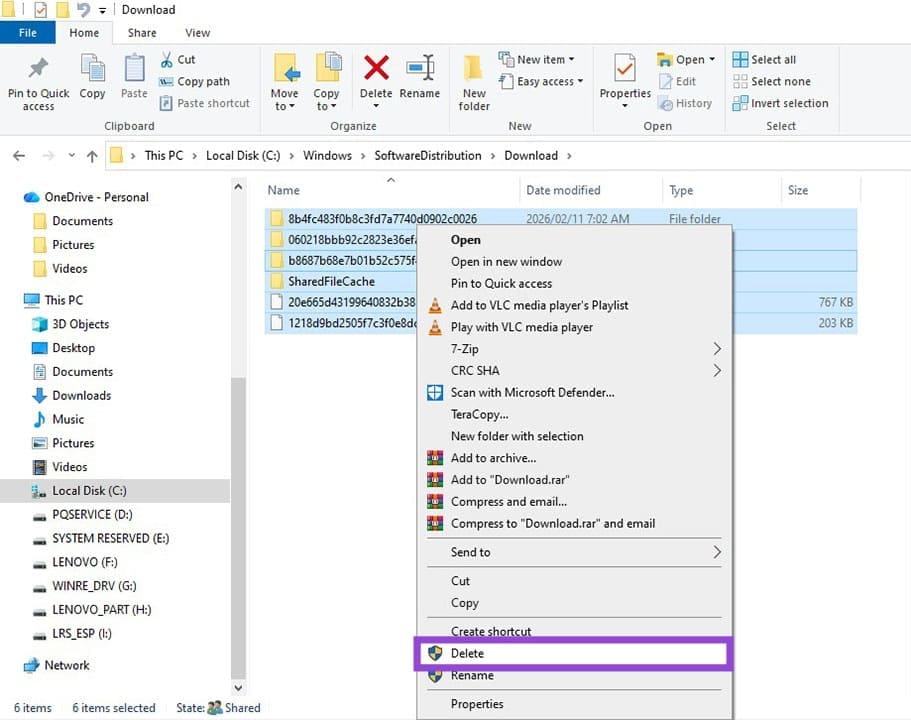
Step 5. In Command Prompt, enter the following commands, pressing Enter after each:
- netsh winsock reset
- net start bits
- net start wuauserv
- net start appidsvc
- net start cryptsvc
Scan and Repair System Files
Step 1. Open Command Prompt as an Administrator (see above).
Step 2. Enter “sfc /scannow” and press Enter.
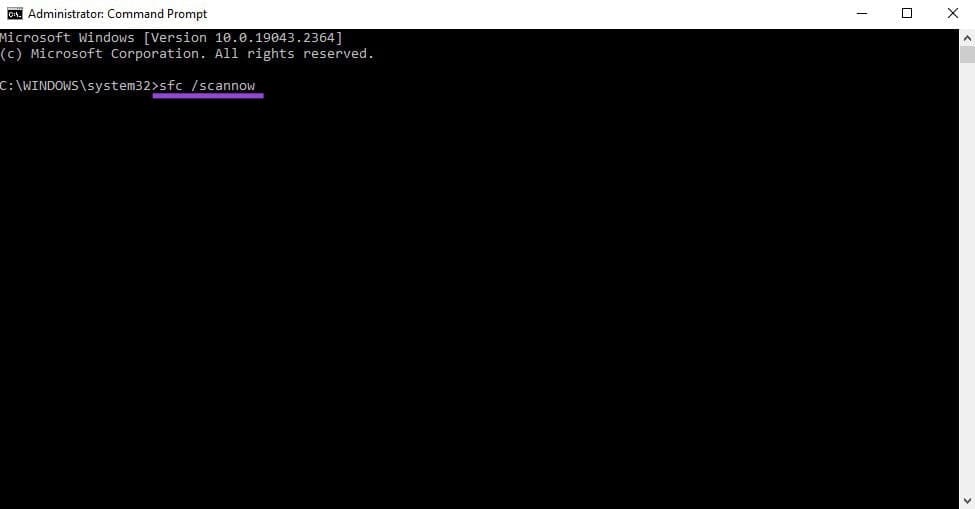
Step 3. Wait for the scan to complete – it could take a while.
Step 4. When it’s done, restart the PC.
Repair the System Image
If the SFC scan fails, try repairing the system image using the DISM feature.
Step 1. Open Command Prompt as an Administrator.
Step 2. Enter “DISM /Online /Cleanup-Image /RestoreHealth” at the prompt and press Enter.

Step 3. Pro Tip: Copy the text and then right-click at the prompt in Command Prompt to paste.
Step 4. Restart the PC after the command completes.
Temporarily Disable Third-Party Antivirus Software
Third-party antivirus or anti-malware software on your PC can interfere with the Windows Update process, causing the 0x800705b4 error code. McAfee software in particular is known to cause this issue.
Try Windows Update after disabling any third-party antivirus software on your PC. If this is the cause of the problem, you can re-enable it once the updates are complete, or consider switching to different antivirus software.
Reinstall Windows via Recovery
If none of the above fixes have tried, you’re probably going to have to reinstall Windows to be able to update Windows without the issue reccurring. Using the Recovery feature will reset Windows without affecting your personal files.
Step 1. Go to Settings > System > Recovery.
Step 2. Under “Fix problems with Windows Updates”, select “Reinstall now.”