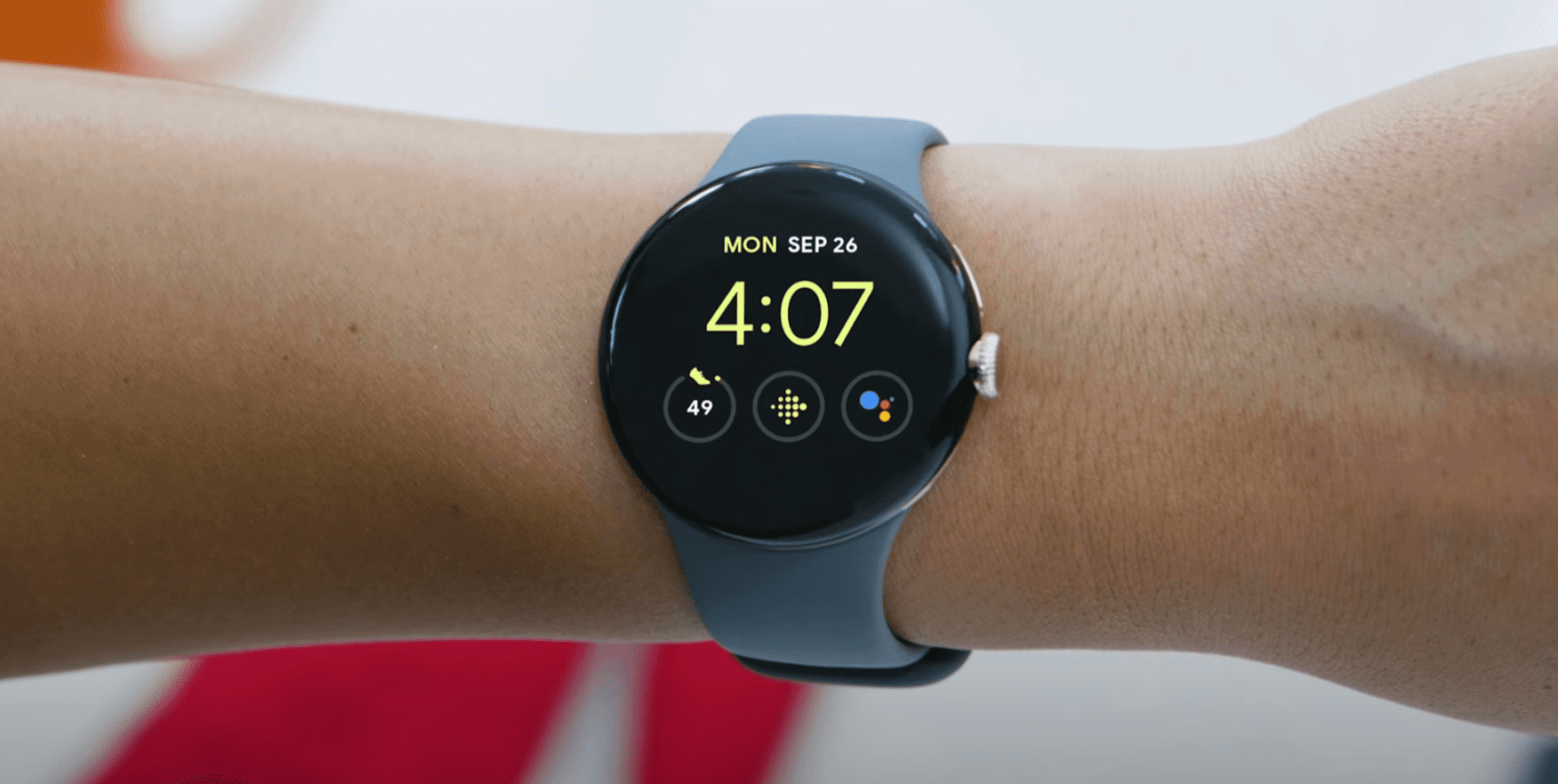
There’s a lot more than a smartwatch can offer besides just being able to quickly glance down and see any notifications that are coming through to your phone. Many of the best smartwatches provide the ability to download third-party applications, and in the case of the Pixel Watch, you can download your favorite apps right from the Play Store. Making things even better is the option to download music on Pixel Watch while using your favorite music streaming service.
If you’re wondering why you would want to download music on Pixel Watch, it’s pretty easy. For one, doing so allows you to leave your phone in the locker at the gym or leave it at home when you go on a run while still being able to pair your Bluetooth headphones and listen to music. Another reason might be to help avoid running into any potential data or storage limits on your phone, as the music is quickly accessible right from your Watch.
How to Download Music on Pixel Watch With Youtube Music

As you might expect, the only streaming music app pre-installed on the Pixel Watch is Google’s own YouTube Music. With YouTube Music Premium, you won’t have to deal with any ads or interruptions, and you can enjoy your favorite songs and playlists in the background without leaving the app open. But more importantly, YouTube Music Premium allows you to download songs, albums, and playlists directly to your devices for offline listening.
In addition to the free six-month Fitbit Premium subscription, Google also includes three months of YouTube Music Premium with every Pixel Watch purchase. This will allow you to check out what YouTube Music offers without forcing you to sign up and pay for a specific music streaming service out of the box. It’s also the easiest way to download music on Pixel Watch, as you don’t need to try and download a different app just to listen to music from your Pixel Watch.
In the event that you don’t already have YouTube Music Premium and want to take advantage of the free three-month trial, here’s how you can sign up:
- From your Pixel Watch, press the crown.
- Scroll down and tap All apps.
- Locate and tap YouTube Music from the list of installed apps on your Pixel Watch.
- When prompted, tap the Open on phone button.
- From the phone paired with your Pixel Watch, follow the on-screen instructions to sign in (or create a new account) and to activate the free trial.
Once you have either activated the free trial or are already subscribed to the service, here’s how you can use YouTube Music to download music on Pixel Watch:
- From your paired phone, open the Google Pixel Watch app.
- If prompted, sign into your YouTube Music account.
- From your Pixel Watch, press the crown.
- Scroll down and tap YouTube Music.
- Scroll down and tap Settings.
- Tap Downloads.
- Select the number of songs that you wish to have downloaded.
- Go through your music to view, pause, or delete songs to improve recommendations.
- Select the number of songs that you want to have updated and downloaded.
There are a few things to be conscious of when it comes to using the Smart Downloads feature with YouTube Music on the Pixel Watch. For one, Google states that the list of downloaded songs will be updated “every night you have more than 40 percent battery charge while connected to Wi-Fi or LTE.” Additionally, it’s recommended that you ensure your Pixel Watch is reconnected to the internet “every 30 days to maintain the music you download.”
Can You Use Spotify to Download Music on Pixel Watch?
While it’s nice to have a free three-month trial of YouTube Music Premium at your disposal, the truth is that Spotify remains the most popular music streaming service on the market. If you’re already a Spotify subscriber, you would probably prefer to use that over YouTube Music to download music on the Pixel Watch. Thankfully, despite needing to manually download the app from the Play Store, it is possible to not only use Spotify on your Pixel Watch but you can also download music to Pixel Watch.
- Press the crown on your Pixel Watch.
- Scroll down and tap Google Play Store.
- Tap the Search icon at the top of the screen.
- Use either the Microphone or Keyboard to enter Spotify into the search box.
- Tap Spotify from the list of apps that appear.
- Tap the Install button.
- Once the Spotify app is installed, tap Open from the Play Store listing, or go to your list of installed apps and tap Spotify.
- Follow the on-screen instructions to sign into your Spotify account.
- From the main Spotify screen, swipe to the left.
- Tap Your Library.
- Locate and select the playlist that you want to download to your Pixel Watch.
- Near the top of the playlist, tap the Download to Watch button.
Depending on the size of the playlist or album you are trying to download, you’ll want to ensure that you have a reliable internet connection. Otherwise, you might find that downloading music to your Pixel Watch will end up using a lot of battery if your connection is spotty. Even if you have the LTE version of the Pixel Watch, we recommend waiting to download music until you are connected to Wi-Fi.