
Git is a distributed version control system that is designed to facilitate the public or private coordinated development of software. Each project in Git is saved in an independent repository. GitHub is the most popular website for hosting repositories but far from the only one. There are other public hosting sites such as Bitbucket, as well as self-hosted options such as GitLab. All sources work through the same Git protocol, the only difference for basic usage is the URL used.
To download a repository so you can contribute to its development, you need to clone it. Cloning is a simple process for public repositories; in this case, you don’t need to provide any authentication information. To clone a private repository, you will need to configure authentication details and have permission to access the repository.
To clone a public repository, simply find the download link for the repository, it will be formatted somewhat like this: “https://[url]/[user_name]/[project_name].git”. For example, the uBlock Origin ad-blocker can be cloned from https://github.com/gorhill/uBlock.git. While the exact location for the git file link may vary for each site, it’s generally found above and to the right of the code.
Tip: HTTPS and SSH are the best protocols to use to download any repositories as they use an encrypted connection.
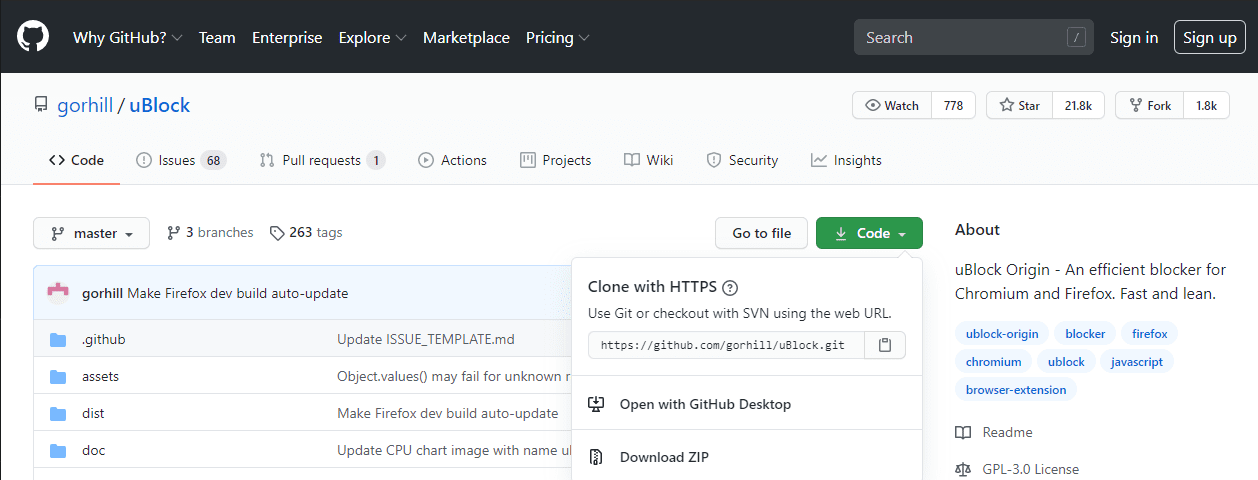
Once you have the link, open a terminal window in the directory in which you wish to clone the repository.
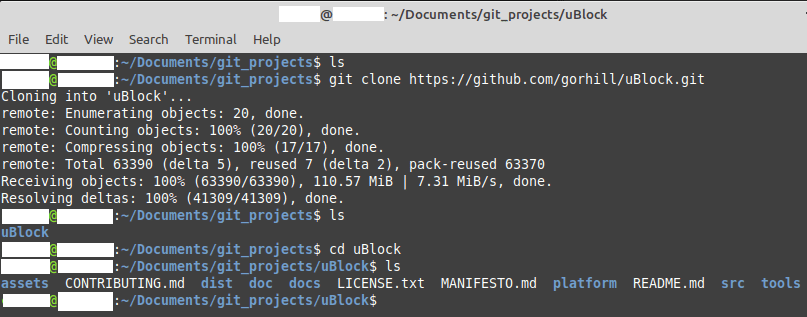
Note: When cloning a repository, the content is placed in a sub-directory, you don’t need to create one for it to be inserted into. For example, if you run the clone command in ~/git_projects, the repository will install in the subdirectory ~/git_projects/[repository_title]/.
Tip: ~/ is a Linux shorthand indicating that the path starts in your user’s home directory.
Once you’re in the right directory, run the command “git clone [git_install_link.git]” and the process will complete automatically. Depending on the size of the repository you’re cloning and how fast your internet is, the download can take some time.
Authentication to private repositories
For private repositories, the basic command is the same, however, you will also have to provide authentication. There are a number of ways to authenticate to the collaboration platform, while most are shared, the exact options, and how to enable them will vary from site to site. It’s recommended that you research what options are offered by your provider and then choose the most secure option.
Common authentication options are tokens, SSH keys, and passwords. The implemented options may vary between sites, in general, you can either include passwords details in the command or pre-configure an SSH key or token in the configuration files. Tokens or SSH keys are the most secure options, where possible using passwords should be avoided as these details can be logged.
Most providers will have guides as to how to configure the supported authentication options for the platform. For example, Atlassian has a detailed guide for configuring SSH authentication for its Bitbucket platform here.
Tip: Optionally you can add your username to the configuration file with the following command: ‘git config –global user.name “[your username]”’. This username will be used by default for all connections from your user account. The global config file can be found in “~/.gitconfig”.
Once you’ve configured your key-based authentication you can simply run the same command as above “git clone [git_install_link.git]” to clone a repository. Your credentials will automatically be used to authenticate. If you absolutely need to use password-based authentication rather than more secure alternatives, you will be prompted for a username and password, if there are no other valid authentication methods.