Skip to content
LogoTechnipages
LogoTechnipages
  • Topics
        • Android
        • Browsers
        • Gaming
        • Hardware
        • Internet
        • iPhone
        • Linux
        • macOS
        • Office
        • Reviews
        • Software
        • Windows
        • Definitions
        • All Recent Posts
  • Product Reviews
  • About

How to Check Error Logs in Windows 11

Evan MercerJune 25, 2025 Comments (0)
how to check error logs in windows 11

If your Windows 11 computer is experiencing unexplained issues such as frequent crashes, slow performance, and apps not functioning properly, it can be a sign that something is wrong in the background. To properly diagnose issues and find out more details about system errors and other software problems going on, you can consult your device’s error logs. They’re stored within a built-in tool called Event Viewer.

Contents

  • 1 When Should You Check Error Logs?
  • 2 How to View Error Logs in Windows 11
    • 2.1 Common Error Log Messages

When Should You Check Error Logs?

You don’t need to check the error logs for every small issue, as some of them are normal occurrences, but there are times when it’s good to look:

  • If your screen suddenly goes black or you get a blue screen, the logs can show what triggered it.
  • If the same program crashes often, the ‘Application’ log can show you what’s going wrong.
  • If your Windows shows random error messages, the logs often contain more detail about them.

How to View Error Logs in Windows 11

Step 1: Type ‘Event Viewer’ in the search bar.

Step 2: Click on the Event Viewer app to open it.

How to Check Error Logs in Windows 11 1

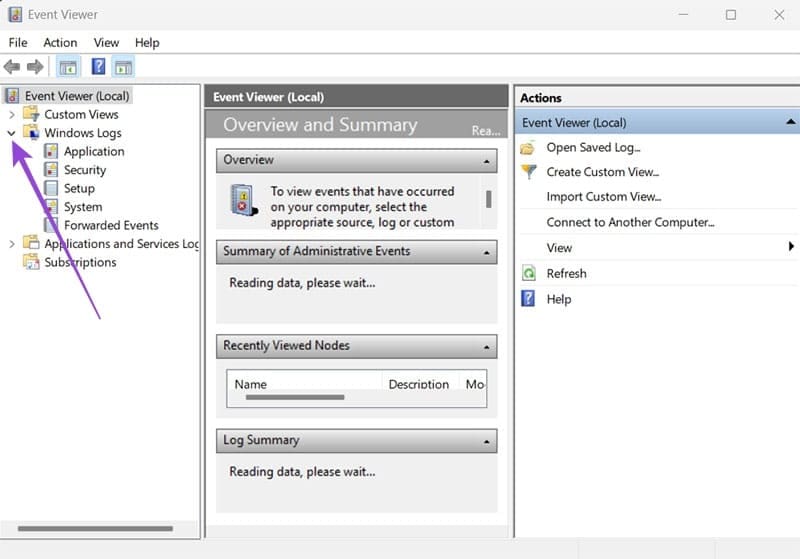
Step 3: Expand the ‘Windows Logs’ tab.
How to Check Error Logs in Windows 11 2

Step 4: Go through the ‘System’ and ‘Application’ logs first.

Step 5: Look for red or yellow icons. Yellow means ‘Warning’ and red means ‘Error.’

How to Check Error Logs in Windows 11 3

Step 6: Click an event to read it.

Once you’ve opened the event, you can see details like the date and time to help determine what the error was. If you had a system update or installed a new app around that time, it could be that they caused the error.

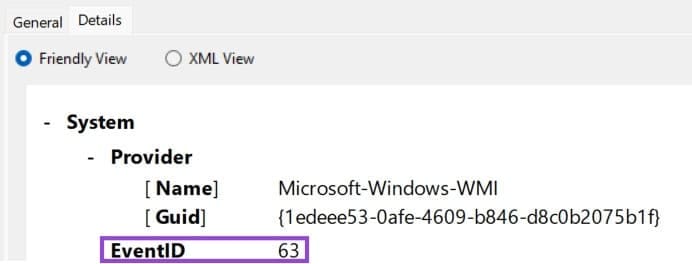
The error log should also contain an ‘Event ID’. This is a specific identifier for a type of error that occurred. You probably won’t know what they mean so it’s best to Google the specific error code to find a solution. Some of the most common error codes are listed below.
How to Check Error Logs in Windows 11 4

Common Error Log Messages

  • Event ID 10016 – This error means a program tried to use system settings that it didn’t have permission for. You don’t need to do anything about it.
  • Event ID 41 – This means your computer didn’t shut down properly. Either it crashed, restarted, or lost power. Try rebooting the system again to fix it.
  • Application Error – This means a specific app crashed. The log should show which one and when. If the app is then giving you problems, try restarting it or uninstalling it and then reinstalling it.
  • Disk Error – This means your Windows system had trouble reading from or writing to your hard drive. This could be a sign of hardware problems and you will need a technician if it keeps happening.
  • Kernel-Power – This is often linked to power issues or sudden shutdowns. If it happens more often, it might be worth checking your hardware or power supply.
Categories: Windows

Author Evan Mercer

I’m a computer science grad who loves to tinker with smartphones and tablets in my spare time. When I’m not writing about how to fix techy problems, I like hanging out with my dogs and sipping nice wine after a tough day.

You Might Also Like

  • Gear Icon Header

    Enable/Disable Numlock at Windows Startup

    Mitch BartlettWindows
  • Windows 10: Enable/Disable On-Screen Keyboard

    Mitch BartlettWindows
  • Windows 7: Fix Code 80243004 Error When Installing Updates

    Mitch BartlettWindows
  • windows-system-registry-file-missing-or-contains-errors

    Fix: System Registry File Is Missing or Contains Errors

    Madalina DinitaWindows

Leave a Reply

Your email address will not be published. Required fields are marked *

  • browser screen goes black

    Browser Screen Goes Black Intermittently 

  • computer heating up in hyper v

    Computer Heating Up When Using Hyper-V – How to Fix 

  • clipchamp unexpected application error

    Clipchamp Unexpected Application Error: Here’s the Solution 

  • winload.efi file missing error

    Winload.EFI File Missing Error on Boot – How to Fix

  • fix error 0x9cfc7550

    How to Fix Error 0x9cfc7550 (We Couldn’t Create a New Partition) in Windows 

profile pic

The Experts Behind Technipages

My name is Mitch Bartlett. I've been working in technology for over 20 years in a wide range of tech jobs from Tech Support to Software Testing. I started this site as a technical guide for myself and it has grown into what I hope is a useful reference for all.

Learn More

technipages logo white
linkedin icon

Technipages is part of Guiding Tech Media, a leading digital media publisher focused on helping people figure out technology. Learn more about our mission and team here.

© 2025 Guiding Tech Media All Rights Reserved

  • About Us
  • Contact
  • Terms of Use
  • Privacy Policy

© 2025 Guiding Tech Media All Rights Reserved

Information from your device can be used to personalize your ad experience.
Do not sell my personal information.

Last Updated on June 25, 2025 by Evan Mercer