
Don’t you hate it when you download a file, and when you try to look for it, you can’t find it? You’ve looked everywhere, but it’s like the file disappeared. After a while, you simply download the file again, hoping you’ll find it this time. It’s times like this that it’s best to change where your downloaded files are saved for your Windows 11 computer to find those files easily.
The new download path can be any folder on your computer. You can even create a new folder and make that your new download location if you want. It’s even possible to make the new download path an external drive. The important thing is to make the final download path one you can easily find and save some time in the process. Let’s see how you can do all this and change where the apps you download are saved.
Contents
How to Modify the Download Path on Windows 11
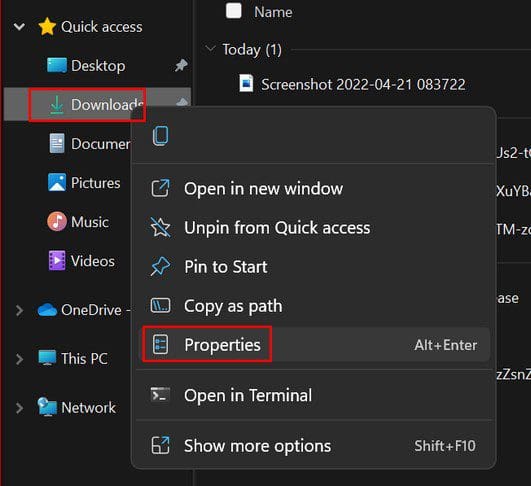
To change where your downloaded files are saved, open the File Explorer at the bottom of your display. Once it’s open, right-click or long-press on the Download folder or any other folder you want to save your files in and choose the Properties option. You can also create a new folder, but I’ll go over that a little further down.
When the Properties window appears, you’re going to see various tabs. Click on the Location tab.
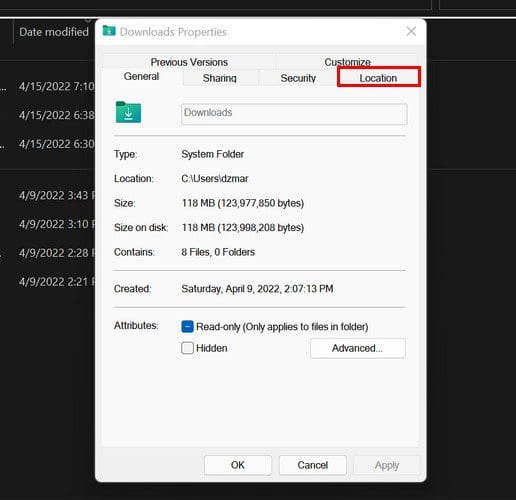
Click on the Move option below the current path, and in the next window, choose the new path you want from the list of available options.
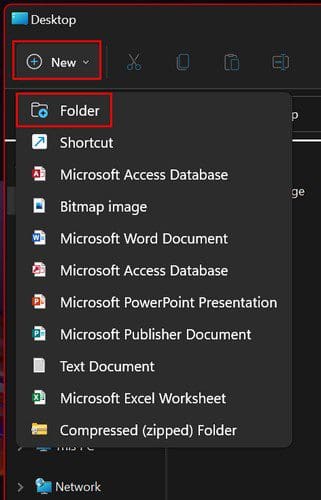
As I mentioned earlier. It can also be a new folder you’ve created. Click on the New option at the top left, and from the option, it shows you choose the folder option. Make sure to give the folder a name that’s easy to remember.
Once you’ve chosen your new download path, click on the Select Folder, followed by the Apply option at the bottom.

Don’t be surprised if Windows 11 asks you if you want to move the files you have on your old download path to the new one. Whether you do that is up to you, but I would recommend it since you need to create the new download path for a reason. That way, you can also forget about the old one and concentrate on the new one.
You might be hesitant about moving your files because you might think that moving them will make them stop working. That won’t happen here; all your apps will continue to work as usual. If you decide to move your files, click on the OK option, and you’re good to go. You can change the download path as many times as you need. There is no limit to how many times you can change it.
Depending on how big the files are will depend on how long the transfer process will take. So, if the files are pretty big, now would be an excellent time to get that fourth cup of coffee.
How to Change the Windows Store Download Location
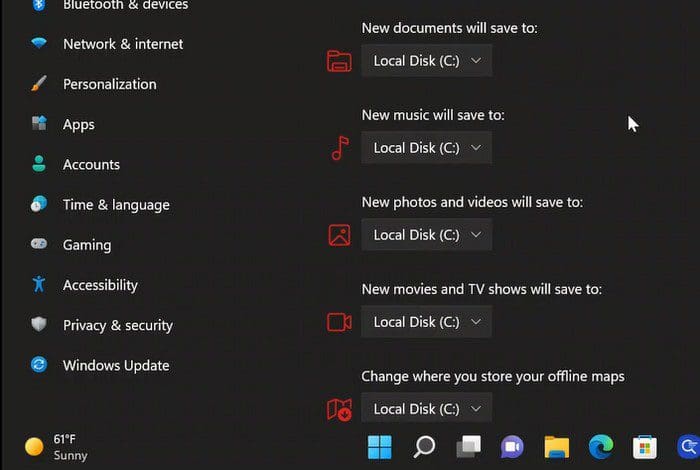
Since we’re on the topic of changing the download location on Windows 11. Here’s how you can change the location for those times when you get an app on the Windows Store. To do that, you’ll need to go to:
- System
- Storage
- Advanced storage Settings
- Where new content is saved
- Click on the dropdown menu for the New apps will save to option

That’s all there is to it. Now you can have your apps in a place that will be easier for you to find. As long as you’re there you can also change where other things are saved. For example, you can change where the files are saved for:
- Offline maps
- New movies and TV shows
- New music
- And New documents
Conclusion
Just because Windows sets the download path at first, that doesn’t mean you have to keep using it if you’re not happy where it is. The steps to change the Windows 11 download path is easy, and you can change it as many times as you want. You can choose any folder on your computer, even create a new one. Where will you be changing the download path on your Windows 11 computer? Share your thoughts in the comments below, and don’t forget to share the article with others on social media.



On Windows 10, when I download anything it opens file explorer automatically. Then I can put the file where it needs to be from the start. Is that option gone in Windows 11? I can’t find where to make that setting change.
How can you get it where it just downloads to the desktop and not into a folder. I want whatever I download not to go into a folder I want it to just be right on the desktop