

Have you ever wanted or needed to create a spreadsheet? You could use them to track your home or business expenses, make a budget or compile data and create charts. Even if you have never touched a spreadsheet before, Google Sheets makes it easy and I highly recommend you try it out. If you have a Google account already, you can just head over to the Google Docs site and start creating!
Once you have created a Sheet (or two – or ten!), you may realize you want to highlight some of the data you have entered by adding a “fill color” to the cell. There are tons of colors to choose from, even! NOTE! This is extremely helpful if you choose to use Sheets to study for tests in college. You can enter an unlimited amount of data, create graphs and so forth and then color-code everything to help you get that A!
If you are not already super familiar with how to do this, it can be a bit confusing, so here are the steps you need to follow:
Highlighting Text From Desktop
Highlighting things in a spreadsheet is a bit different. Instead of highlighting words (or numbers,) you are going to use the Fill feature to highlight the entire cell, column or row. First, obviously, you are going to need to select whatever you wish to have highlighted.
- To select a row, click on the row number all the way to the left.
- To select a column, click on the column letter at the top of it.
- To select a single cell, click anywhere within that cell.
- To select several cells in different rows or columns, click within one cell. It will be outlined in blue. Hold down your Control button and click on the other cells.

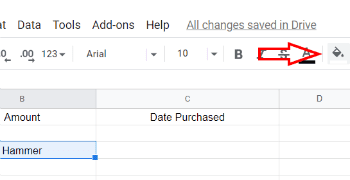
- With your selection made, look up top to the toolbar and find the little icon that looks like a bucket of paint tipping to the right with a drop of paint coming out of it. This is your Fill Color selector.

- Click there and choose your color. Once again, click outside the selected area and your color has now been applied!
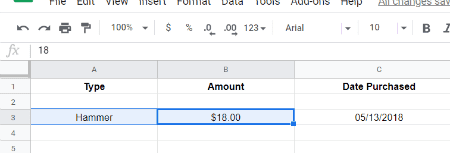
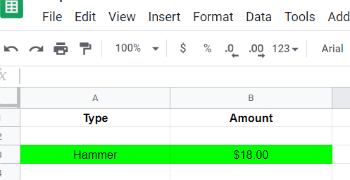
Congrats! You have successfully highlighted text within your Sheets!
Highlighting Text Using iOS or Android
Completing this task using your mobile device is just a bit different than how you do it on a computer. It still is not difficult, but also is not super intuitive. You will need to download the Google Sheets app from your respective app store first. Then, open up your desired spreadsheet. Here is the quick rundown on how to then highlight your cells:
- Click on any cell you wish to highlight and then drag to select all of the ones you need.
- Tap on the ”Format” button, which looks like a capital letter A with small lines to the right of it.
- Look for the ”Cell” tab and then scroll to choose ”Cell Fill Color” and click your desired color. Voila!
- You will notice that you can also quickly add a cell border from here and change its style and color.
What other questions about Sheets do you have? Let me know in the comments, and I will do my best to either answer them there or perhaps end up creating a new post to help you – and others.
Happy creating!





I just wanted to highlight within the cell and not the whole cell, this is not possible? Would be great to know.
I’m working on a timetable and wanted to give each subject for special teachers their own color so they know where to be at what time.
This is not about how to highlight text, it’s about highlighting a whole cell. Is there a way to highlight text within a cell, without filling the whole cell?
my computer wont let me highlight (or select) my cells for some reason. Does anyone know what might be going on?
Yes Melody it is very frustrating. I have a Google sheets now that has a row of green. No matter what I do I cannot get rid of it. I tried the highlighting function multiple times and it won’t erase. Hope someone can help.
Cell fill color is NOT the same thing as highlighting.
I don’t know if anyone will see this, since this article was posted a while ago, but I have a Sheets document where I daily record what I do with my students, and I’ve noticed that sometimes some of the lines have a
color on them that I didn’t put there. When I look at the highlight colors, it doesn’t show that anything is highlighted. If I choose a color, it puts it over the color that I didn’t choose, but I can’t see anyway to turn off the highlight color that I don’t want there. If anyone has any insight into this, I’d love to hear it.
I want to do this programmatically e.g. with a google script. Do you have code for this function?