Issues that occur when starting up your PC should always be cause for concern. Today’s issue can be a very serious one: “Hard Disk S.M.A.R.T Command Failed” when turning on your machine. This can occasionally mean a quick fix can help, but more often than not, this error is a sign that things have (or are soon about to) go seriously wrong for your hard drive.
In this article, we’ll be showing you what to do when confronted with the Hard disk SMART command error.
Contents
What Is the SMART Command?
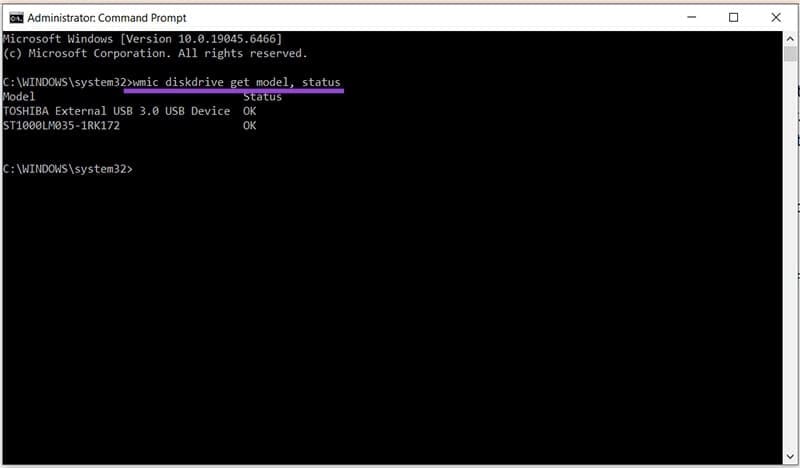
SMART stands for Self-Monitoring, Analysis, and Reporting Technology. It’s a system that monitors the health of your hard drive and remains one of the best ways to detect issues with your disk. A smart check can usually be performed manually in the Command Prompt by typing in “wmic diskdrive get model, status.” A “pred fail” result indicates imminent failure, while “OK” is a sign all’s well.
In addition, your PC will run SMART on startup when booting. If the command reports as “failed,” you have a serious issue with your hard drive.
How to Fix the Hard Disk SMART Command Error
Before you start panicking, it’s good to be methodical in your approach to this error. Try the fixes below one by one:
Restart and Hard Reset
Your first step if coming across this error when booting up is to do a quick restart. If the issue is resolved, great. If not, your next step should be a hard reset. To do this:
Step 1. Turn off your computer and disconnect all power sources and chargers.
Step 2. Press and hold the power button on your laptop or PC for 30 seconds or more to allow all the power to drain out.
Step 3. Reconnect your machine, start it up, and see if the issue is resolved.
Backup Everything
If you can make it to the Windows greeting screen after the error at boot up, your immediate concern should be to back up your hard drive or any important files as soon as possible before things get worse. Copy these to an external drive or the cloud. Disk cloning can be performed, but the new disk might copy some of the corrupted data from the bad sectors.
Run a Disk Check
If possible, you can scan the problematic disk in Windows for errors. It’s important that you first back up the disk before beginning the process. With that done, here’s how:
Step 1. Go to “This PC” and right-click the drive.
Step 2. Select “Properties” and then tools in the new window.
Step 3. Under “Error Checking,” click “Check” (you’ll need admin privileges) to run a disk scan.

Check Cables and Connections
The next potential fix is to check all the cables that connect your machine’s components. Open up your PC or laptop after disconnecting it and ensuring no residual charge remains. Be sure to work in an anti-static environment. If unsure, take it to an expert. Here’s what to check:
- The hard drive’s connection to the motherboard. Inspect for damage or disconnect
- Change the SATA cable if need be
- If you have multiple slots for a hard drive, you can also try changing your hard drive to another one
- Dust the PC and ports, which can result in high temperatures and further disk problems
Close your PC and test things again.
Clear the CMOS
The CMOS contains BIOS settings, which may be causing issues with your hard drive. You can try clearing it, which might remove the warning message:
Step 1. Turn off and disconnect your PC completely. Open it up.
Step 2. Carefully remove the CMOS battery from its socket on the motherboard.
Step 3. After a few minutes, put it back in.
Step 4. Start up your PC and check the issue.
Get a New Hard Drive
Ultimately, any issue that causes a SMART check failure on a hard drive will necessitate a new one, if not today, then very soon. Rather than risk losing your data, it’s best to back up everything and copy it to a new drive ASAP.