If your computer is equipped with an Intel Precise touchscreen driver, you may sometimes get a strange “Status Device Data Error” message. The error pops on the screen when the touch screen stops working along with the pen input. Restarting your computer won’t solve the problem. Let’s see what else you can do to fix this error.
How to Fix Intel Precise STATUS_DEVICE_DATA_ERROR
Update Your Touch Screen Driver
Make sure you’re running the latest touch screen driver for your device. Launch the Device Manager, and expand the list of Human Interface Devices. Locate your touch screen driver (HID-compliant touch screen). Right-click on your drive and select Update driver.
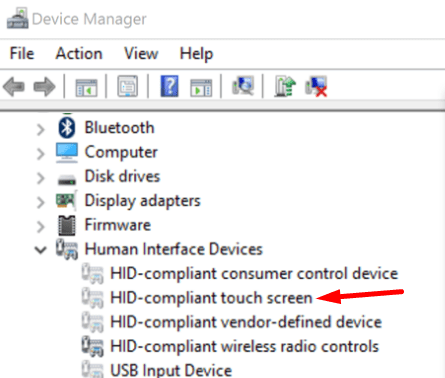
Restart your computer, and check if the touch screen issue persists. If this is the case, right-click on your touch screen driver again, and select Uninstall device. Restart your machine again to automatically reinstall the latest driver.
Alternatively, you can manually install the latest drivers from Microsoft’s official website if you own a Surface device. Go to Microsoft’s support web page, scroll down to the bottom of the page, select your Surface model, and download the latest driver version.
Disable Touch Screen
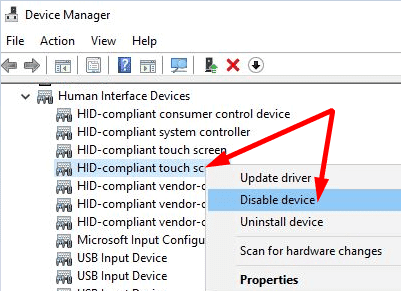
Launch the Device Manager, and select Human Interface Devices. Right-click on the HID-compliant touch screen and select Disable device to turn the touchscreen functionality off. Confirm your choice, and restart the device. Then re-enable the touch screen and check the results.
Run the Surface Diagnostic Toolkit
If you’re getting this error on a Surface device, run the Surface Diagnostic Toolkit. First, you need to download the tool from the Microsoft Store. Double-click on the installer and follow the on-screen instructions. The whole scan and repair process should not take more than 15 minutes.
Get the Latest Windows Updates or RollBack
If you’re not running the latest Windows OS version, go to Settings, and select Update and Security. Then click on Windows Update, and click on the Check for updates button.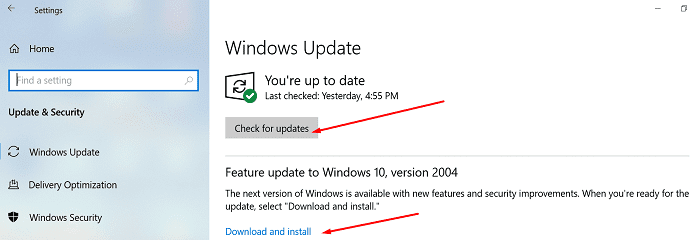
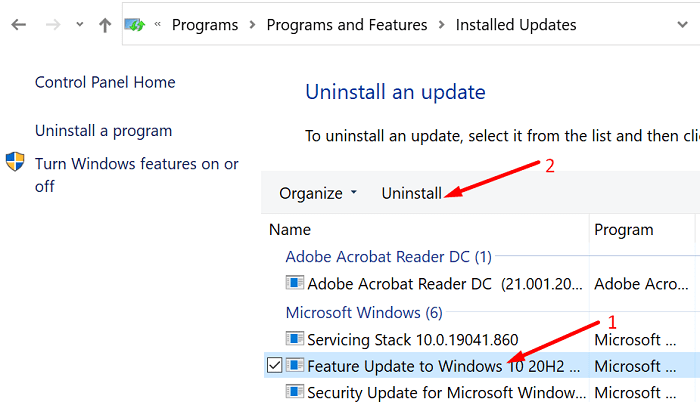
On the other hand, if the status device data error started after installing the latest Windows updates, remove the updates. Go to Control Panel, select Uninstall a program, and click on View installed updates. Select the update you want to delete and hit the Uninstall option.
Reset Touch Calibration Settings
- Type “calibrate” in the Windows Start Search field and select Calibrate the screen for pen or touch input.
- Select Reset, and hit Enter to reset touch calibration to factory settings.
- Follow the on-screen steps to recalibrate your device. Check if the error persists.
Check Touch Screen Power Settings
- Relaunch the Device Manager, go to Human Interface Devices, and double click HID-compliant touch screen.
- Go to the Power Management tab.
- Untick the option that says, “Allow the computer to turn off this device to save power.”

- Save the changes, restart your device, and check the results.

Go to a Repair Shop
If you’re still getting device data errors, go to an authorized repair shop and check if the hardware is faulty. If the device is still under warranty, you can quickly replace it with a new one should certain hardware components be faulty.
Conclusion
To fix STATUS_DEVICE_DATA_ERROR, update your touch screen driver. Then disable and re-enable the touch screen functionality, and install the latest Windows updates. If the issue persists, reset your touch screen calibration settings, and edit your power settings to prevent the OS from turning off the touch screen feature. Did you manage to fix the problem? Which of these solutions worked for you? Let us know in the comments below.