

Your Gmail signature image or logo may sometimes disappear all of a sudden. When this issue occurs, Gmail shows a blank box where the image should be or there’s no image at all. This issue can be really confusing, especially if you haven’t changed your permission settings recently. Try setting up your Gmail signature image again and check if the issue persists. If the problem won’t go away, follow the troubleshooting solutions below.
Contents
Fix: My Gmail Signature Image Keeps Disappearing
Use a Different Image Format
Open your signature logo or image and save it in a different format. For example, if you previously saved the image as a JPEG file, save it as a PNG image and upload it again. Save the new signature format and check if the issue persists.
Log Out, Open Incognito Mode and Reinsert the Image
Sign out of your Google account, and open a new Incognito window. Then, reinsert the problematic image or logo. Save the signature and exit Incognito Mode. Check the results.
Check Google Sharing Permissions
If the image you’re using in your Gmail signature is stored in Google Drive, check your privacy settings and make sure everyone can view it. Usually, when you insert a Google Drive image in your Gmail signature, its privacy settings automatically switch to “Anyone can view it“. Unfortunately, there are times when the privacy permissions fail to change and you need to do that manually.
- Open Google Drive.
- Right-click on the image you want to add to your Gmail signature.
- Then click on Share.
- Change the permission settings to Anyone with the link.

- Click on Insert Image and copy-paste the image link from Google Drive.

The most important thing is not to delete that image from your Google Drive account. If you do that, the image will disappear from your Gmail signature. Alternatively, go to Gmail settings and insert the image directly from your Drive folders.
Disable Plain Text Mode
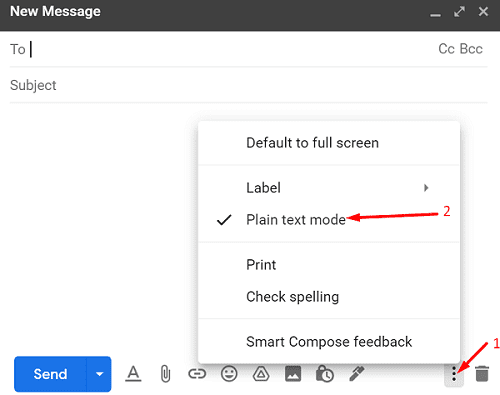
If the signature image doesn’t show up when you’re compositing an email, disable Plain Text mode.
- Click on New message.
- Then click on the Compose button.
- Click on the three-dot icon.
- Clear the checkmark next to Plain text mode.

- Close the current window and restart Gmail.
- Hit the Compose button again and check if your signature image shows up now.
Conclusion
If your Gmail signature image doesn’t show up when you’re composing a message, disable “Plain text mode”. Additionally, save your signature logo or image in a different format and upload it again. If the image is stored in Google Drive, edit your privacy settings so that everyone can view it.
Did you manage to fix the problem? Which of the methods above did the trick for you? Let us know in the comments below.




Nope. All my settings were correct to begin with. I uploaded a different format of the photo. I not only have no photo, I have no words. No signature at all. Nothing.
same here. Any help would be greatly appreciated. Works sometimes, then just gets sent as a blank square when the recipient sees it. All settings are as stated in the article.
Thanks
ditto to the above comment.
sadly, all these have failed to work due to a technical issue with gmail/gdrive. looks like this started happening after google updated their security for gdrive files. so what happens now is that the image signature (png) that sits on gdrive can be used for around 12 hours, then it just vanishes from the signature settings in gmail and is replaced by an empty square. as a result, the signature will not be displayed anymore to the recipient. this happens by itself, without modifying any settings, works half day and then it’s back to scratch. any feedback would be appreciated.