Skip to content
LogoTechnipages
LogoTechnipages
  • Topics
        • Android
        • Browsers
        • Gaming
        • Hardware
        • Internet
        • iPhone
        • Linux
        • macOS
        • Office
        • Reviews
        • Software
        • Windows
        • Definitions
        • All Recent Posts
  • Product Reviews
  • About

Fix Chromebook “Error Installing Linux” Beta

Madalina DinitaAugust 11, 2021 Comments (2)
chromebook-error-installing-linux-fix

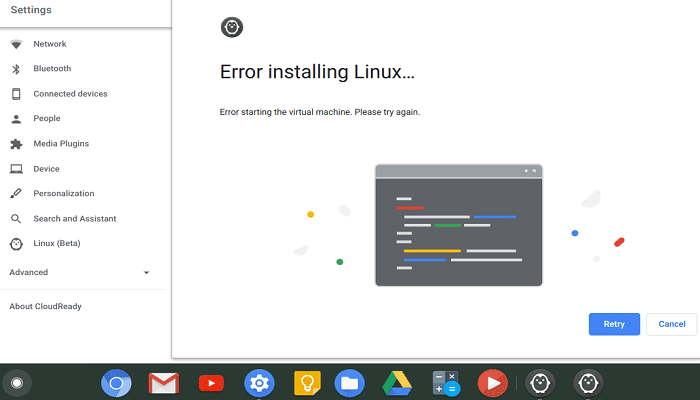
If you can’t install Linux Beta on your Chromebook, you’ve come to the right place. Many ChromeOS users complained the Linux installer often shows various errors when they try to install the feature. If you already restarted your Chromebook, but the issue persists, follow the steps below to fix it.

Contents

  • 1 Why Does My Chromebook Say “Error Installing Linux”?
    • 1.1 Update Your VM and Packages
    • 1.2 Disable the “Crostini Use DLC” Flag
    • 1.3 Use Secure DNS With Current Service Provider
    • 1.4 Powerwash Your Chromebook
    • 1.5 Conclusion

Why Does My Chromebook Say “Error Installing Linux”?

chromebook-error-installing-linux

Update Your VM and Packages

First of all, make sure you have sufficient storage space available on your laptop. Delete any unnecessary apps and files to free up some space. Then update your virtual machine and packages.

  1. Launch Chrome, open a new tab, and go to chrome://components.
  2. Go to cros-termina and click Check for updates.
  3. Then open the Terminal app and run the sudo apt-get update && sudo apt-get dist-upgrade command.
  4. Restart your Chromebook to apply the changes. Check if you can install Linux Beta.

Disable the “Crostini Use DLC” Flag

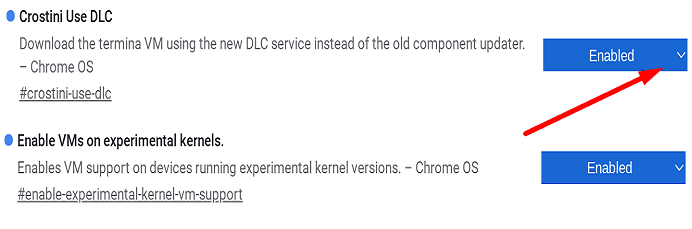
Many ChromeOS users confirmed they could fix many Linux-related errors simply by turning off the “Crostini Use DLC” flag.

  1. Launch Chrome, enter chrome://flags in the address bar, and hit Enter.
  2. Locate Crostini Use DLC.
  3. Disable this Chrome flag using the drop-down menu.Crostini-Use-DLC-flag
  4. Restart your laptop. Check if you can install Linux on your Chromebook.
Use Secure DNS With Current Service Provider

Chrome’s “Use Secure DNS” setting may trigger all sorts of Linux installation errors. The solution is to enable the option that lets you use this setting with your current provider.

  1. Launch Chrome, and go to Settings.
  2. Then click on Privacy and Security.
  3. Select Security, and click Advanced.
  4. Go to Use Secure DNS.
  5. Toggle on the option that says Use with your current service provider.
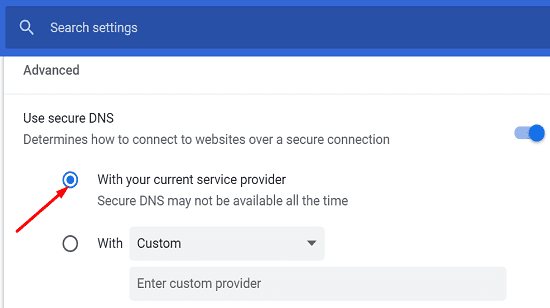
Use-Secure-DNS-with-your-current-service-provider

If the issue persists, go to Wi-Fi settings, and switch your DNS to Google’s DNS settings.

  • For IPv4, use 8.8.8.8 and/or 8.8.4.4.
  • For IPv6 use 2001:4860:4860::8888 and/or 2001:4860:4860::8844.

Powerwash Your Chromebook

If the issue persists and you’ve got everything backed up, you can powerwash your Chromebook. Keep in mind that using this method will factory reset your device.

  1. Log out of your Chromebook.
  2. Then, press and hold Ctrl, Alt, Shift, and R.
  3. Click Restart, and then select Powerwash.
  4.  Then log in to your Google Account, and follow the on-screen steps to set up your Chromebook.
  5. Check if Linux installation errors persist.

Conclusion

If your Chromebook says that an error occurred while installing Linux, update your virtual machine and packages. Then disable the “Crostini Use DLC” flag, and use Secure DNS with the current service provider. As a last resort, powerwash your Chromebook. Did these tips help you fix the problem? Share your feedback in the comments below.


Categories: Hardware

Author Madalina Dinita

Madalina has been a Windows fan ever since she got her hands on her first Windows XP computer. She is interested in all things technology, especially emerging technologies -- AI and DNA computing in particular.

You Might Also Like

  • Headphones That Are Made In the U.S.A.

    Mitch BartlettHardware
  • fix always on display not working galaxy watch

    Fix Always on Display Not Working on Galaxy Watch

    Madalina DinitaHardware
  • fix-chromebook-stuck-checking-for-updates

    Fix: Chromebook Stuck on Checking for Updates

    Madalina DinitaHardware
  • 3D printing header

    3D Printing: Troubleshooting Messy Bridges

    Mel HawthorneHardware

Comments

  1. Chance says:
    August 26, 2023 at 2:13 pm

    I can’t find the component or flag, can’t find the secure DNS settings, and powerwashing didn’t work. I’m confused

  2. dorothy says:
    January 2, 2022 at 1:57 pm

    i fixed it in crosh run top and then you see it working now

Leave a Reply

Your email address will not be published. Required fields are marked *

  • winload.efi file missing error

    Winload.EFI File Missing Error on Boot – How to Fix

  • fix error 0x9cfc7550

    How to Fix Error 0x9cfc7550 (We Couldn’t Create a New Partition) in Windows 

  • fix error code 0x3000008 1

    How to Fix Error Code 0x3000008 for Remote Desktop Connection

  • fix error code 0x80190001 1

    How to Quickly Fix Error 0x80190001 for Microsoft or Outlook Account Login 

  • fix filecoauth.exe application error

    Fix FileCoAuth.exe Application Error 

profile pic

The Experts Behind Technipages

My name is Mitch Bartlett. I've been working in technology for over 20 years in a wide range of tech jobs from Tech Support to Software Testing. I started this site as a technical guide for myself and it has grown into what I hope is a useful reference for all.

Learn More

technipages logo white
linkedin icon

Technipages is part of Guiding Tech Media, a leading digital media publisher focused on helping people figure out technology. Learn more about our mission and team here.

© 2025 Guiding Tech Media All Rights Reserved

  • About Us
  • Contact
  • Terms of Use
  • Privacy Policy

© 2025 Guiding Tech Media All Rights Reserved

Information from your device can be used to personalize your ad experience.
Do not sell my personal information.

Last Updated on August 11, 2021 by Judy Sanhz