It can be frustrating to see files getting deleted on PC when you don’t want them to be. Some users may even encounter an issue with files automatically deleted on click, where any time they click a folder or file, it gets removed without warning. There are several potential explanations for this, as well as troubleshooting steps and solutions, which you can find details of below.
Contents
5 Reasons for Files Automatically Deleted on Click or Randomly Removed from Your PC
If files are being deleted automatically on your PC, it could be related to your Windows settings, the hardware you’re using, or even a piece of malicious software.
Reason 1. Malware
Certain types of computer viruses and other malware can wreak havoc with your device’s files and folders, randomly deleting things without your approval. As long as you have a reputable anti-malware program installed (or the default Windows option, Windows Defender), then you should be able to fix this, as follows:
Step 1. Open your anti-malware program and run a complete system scan.
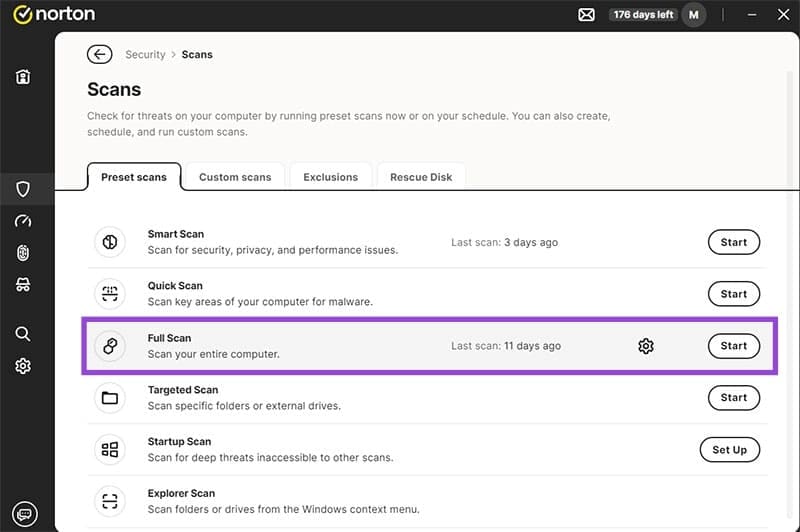
Step 2. Wait for the scan to finish. If any viruses or suspicious files are found, follow the software’s recommended steps to quarantine or remove any malicious content.
Reason 2. False Positives
Another possibility why files may be deleted from your computer is because of your antivirus software. Some programs can be overly sensitive and see certain safe files as dangerous or suspicious, so delete them to keep your device safe. The technical term for these incidents is “false positives,” but you can adjust your anti-malware settings to stop the deletions from happening.
The exact way to do this will vary depending on which anti-malware application you use.
Step 1. Open your anti-malware software and look for a page or tab labeled “Exclusions.”
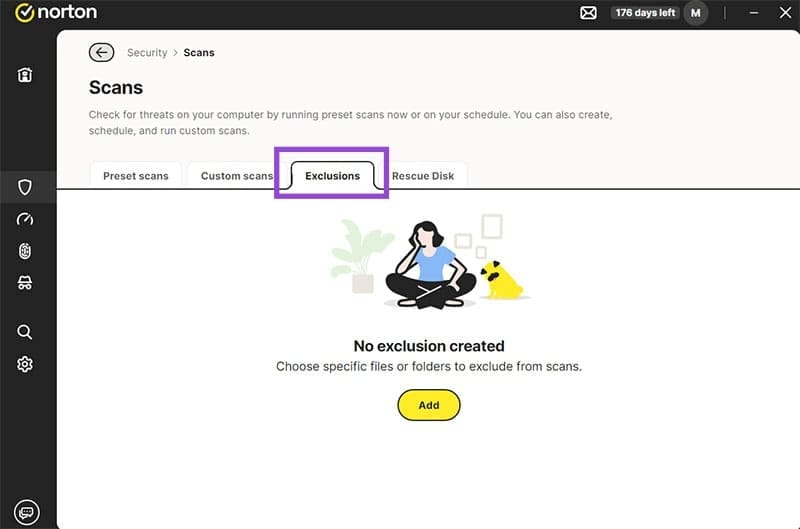
Step 2. Click to add a new exclusion, and enter or select the files or folders you don’t want your anti-malware program to interfere with.

Note: Adding exclusion folders to anti-malware programs could put your device at risk if any unsafe files are in those folders, so be very careful when using this method.
Reason 3. Faulty Hardware
If you’re having issues with files automatically deleted on click, it’s possible that your mouse or keyboard is to blame. If the “Delete” button on your keyboard is stuck in any way, for example, or your mouse click buttons aren’t working quite as intended, random deletions may occur. To fix this, you may need to speak to a professional technician or swap your mouse/keyboard for another.
Reason 4. Outdated Drivers
It’s also possible that your drivers or other important pieces of software are out of date, which can sometimes lead to random bugs, glitches, and technical issues. This is especially true if you’re using a mouse or keyboard that doesn’t have the latest firmware, for example.
Step 1. Open the “Device Manager,” which you can find by simply typing “Device” into the search bar.
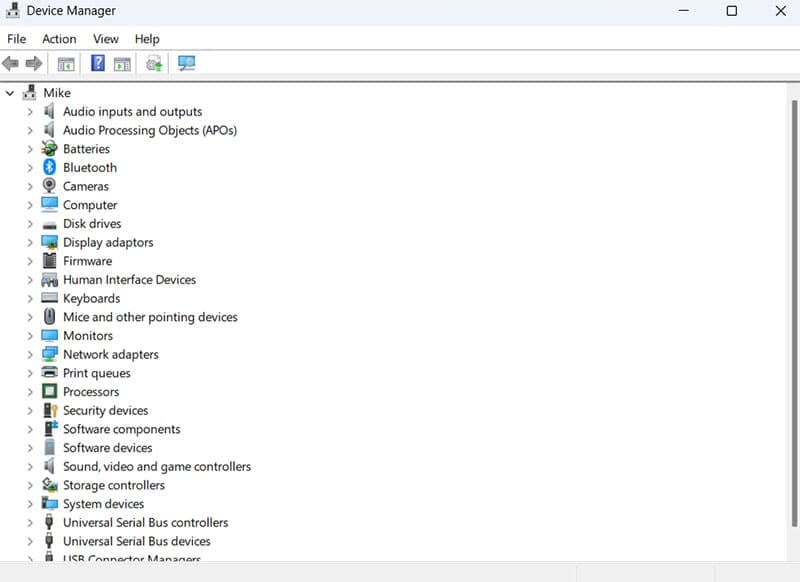
Step 2. Click the little arrow next to “Mice and other pointing devices,” then right-click on each piece of hardware and select “Update driver” to install the latest files. If prompted, select to search your device for the best available driver.
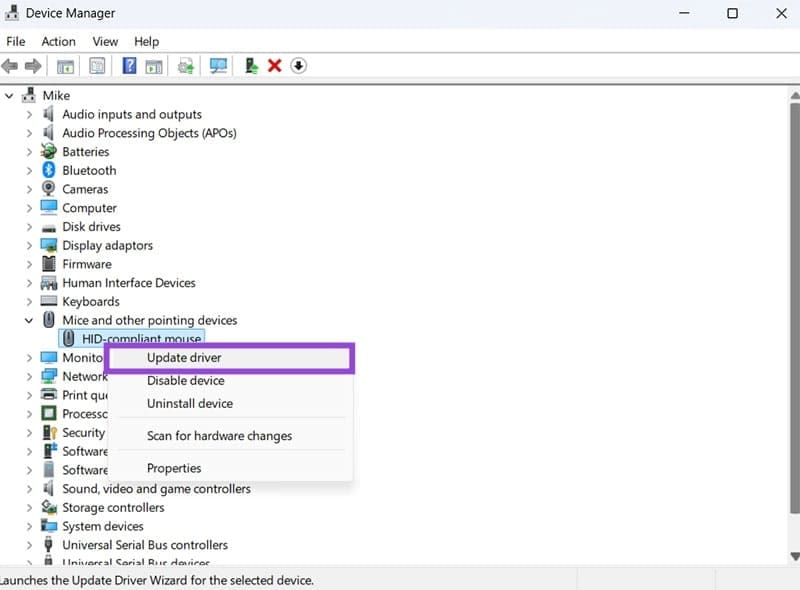
Step 3. Repeat this process for your keyboard.
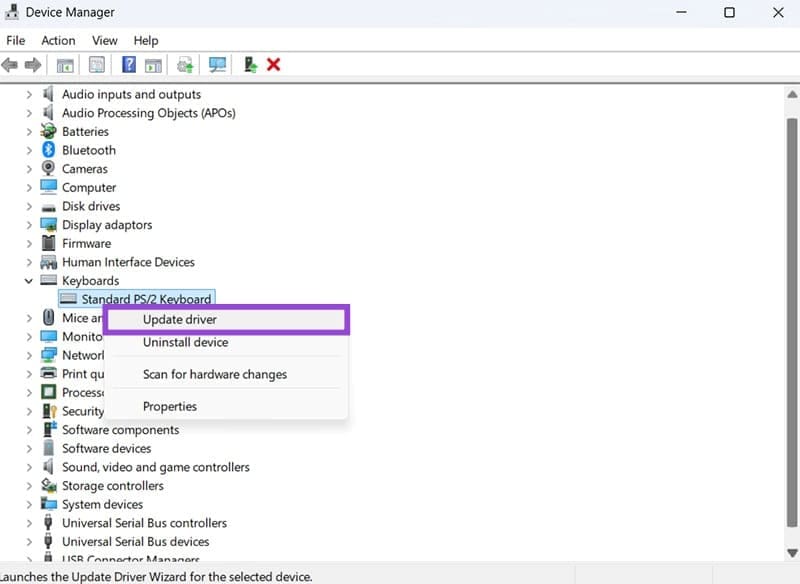
Note: You may need to visit the manufacturer’s website of your keyboard, mouse, or other peripherals to download the latest drivers if your computer isn’t able to find any updates on its own.
Reason 5. Windows Storage Settings
A feature in Windows called “Storage Sense” is designed to delete old or unneeded files to free up space on your hard drive. If you’re having issues with files being deleted automatically, it could be down to Storage Sense. You can disable this function as follows:
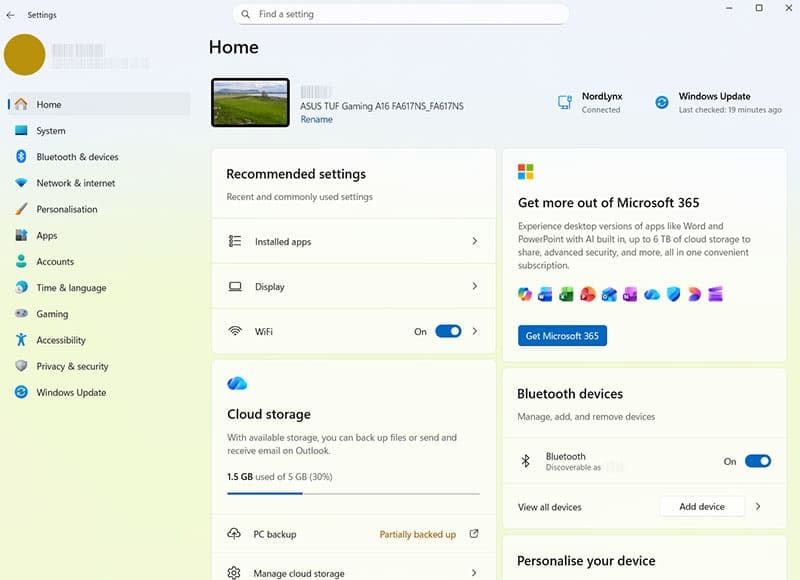
Step 1. Press the “Windows” and “I” keys together to open the Settings.
Step 2. Go to “System” and then “Storage.”
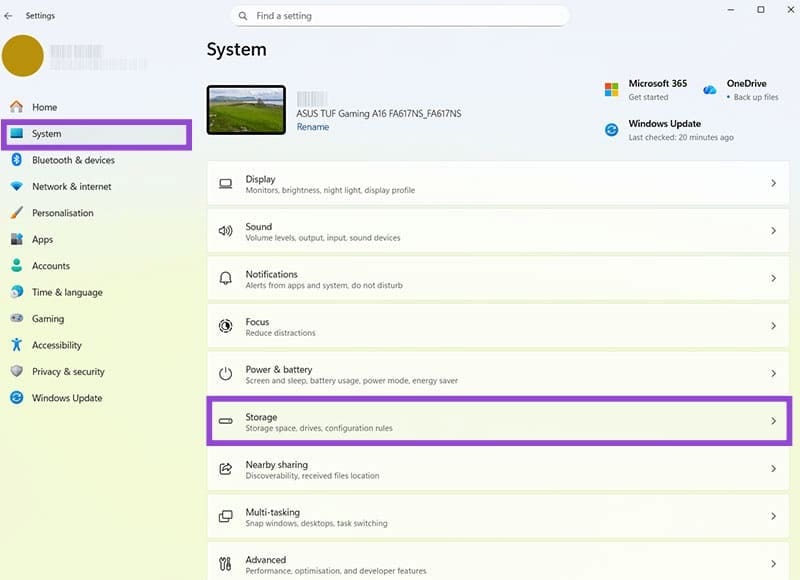
Step 3. Toggle the “Storage Sense” feature to the “Off” position.