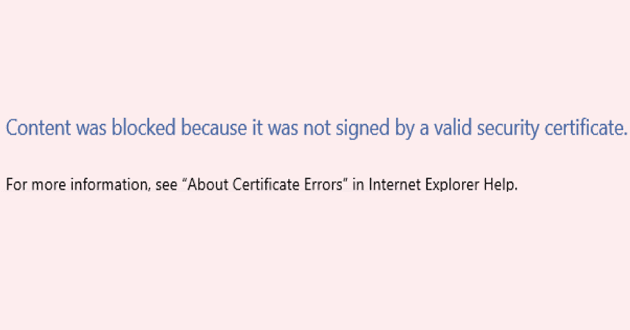
If Microsoft Edge does not detect a valid security certificate for the webpage you’re visiting, it will block it. And when this happens, you’ll get the following alert on the screen: “Content was blocked because it was not signed by a valid security certificate“. The same error can pop up on Internet Explorer 11 and SharePoint.
However, other browsers may not block the content that Edge and IE11 flagged as potentially dangerous. This indicates there’s nothing wrong with that webpage. If you suspect your browser mistakenly blocked the website, pursue the troubleshooting methods below.
Contents
What to Do if Edge Blocked Content Due to an Invalid Security Certificate
Install Any Pending Updates
A site’s security certificate guarantees the connection is safe and secure. If you’re running an outdated browser version, Edge may fail to detect the security certificate — or the latest security certificate changes, for that matter.
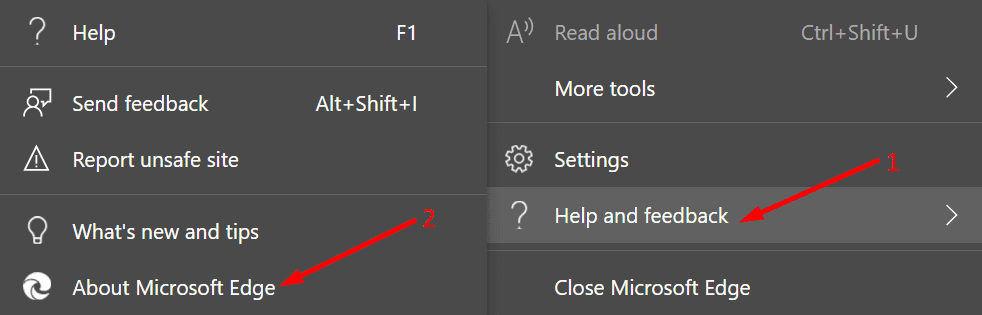
- Click on More options and select Help and Feedback.
- Select About Microsoft Edge to automatically check for updates.

- Restart your browser after installing the updates.
Clear the Cache and Cookies
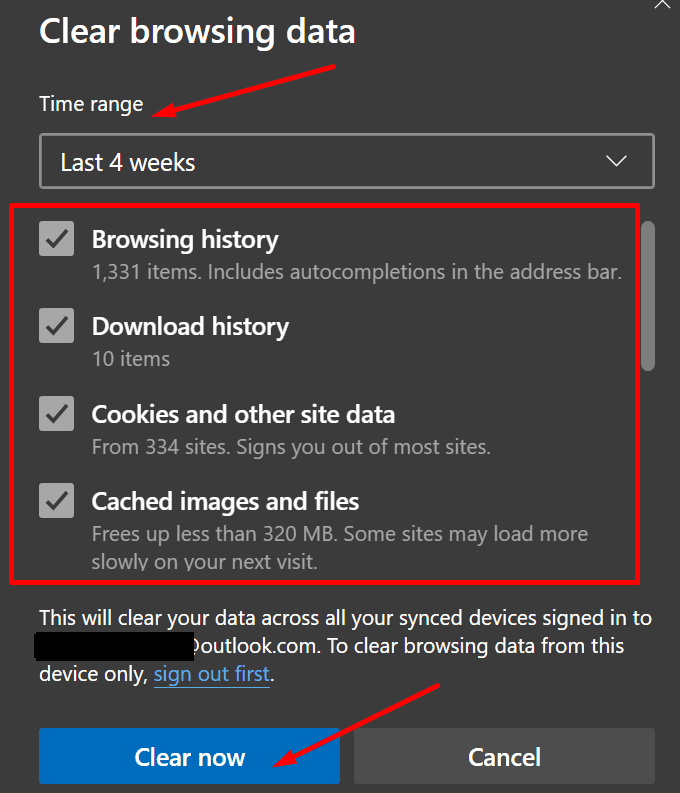
- Click on More options and go to History.
- Then select Clear browsing data. Under time range, select Last 4 weeks.
- Select all four options. But keep in mind that you’ll be signed out of most sites.

- Hit the Clear Now button. Restart your browser.
Check Your Date and Time Settings
If your date and time settings are incorrect, Edge may not detect the latest security certificate changes.
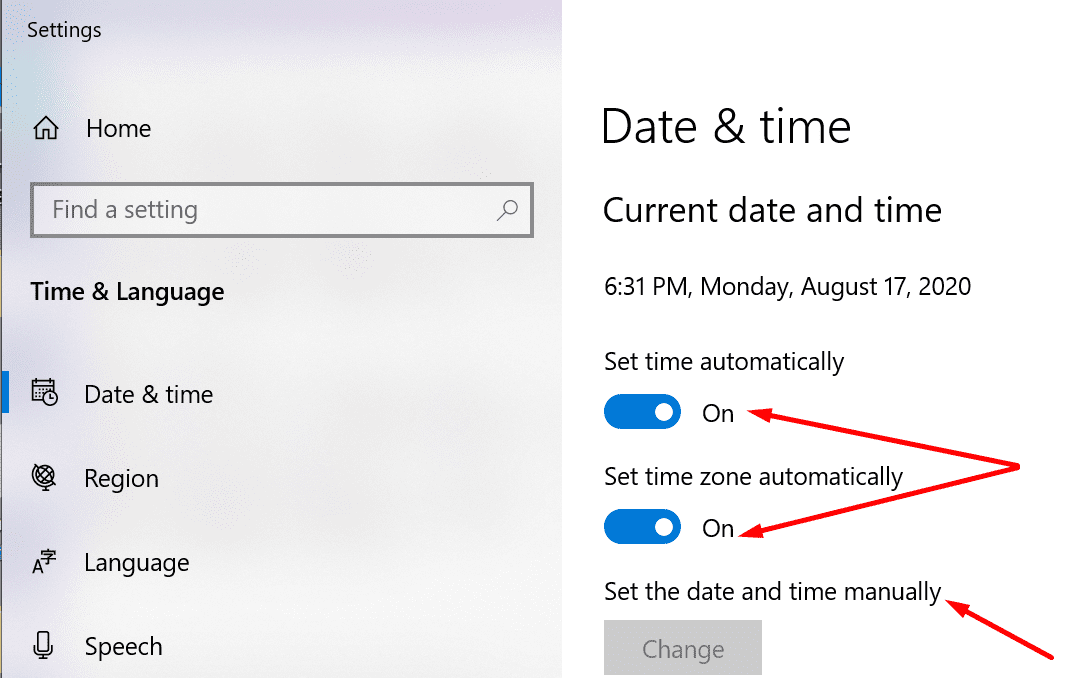
- Go to Settings and select Time and Language.
- Then click on Date and Time and enable these two options:
- Set time automatically.
- Set time zone automatically.

- Restart your computer, launch Edge, and check if the certificate error persists.
Tweak Your Internet Settings
If nothing worked, go to Internet Options and tweak your settings. We’re going to add the problematic website to the list of trusted websites and add a certificate exception. As a last resort, we’re going to reset all the settings.
⇒ Note: Follow these steps only if you’re absolutely sure the website you’re visiting is safe. If the security certificate is indeed invalid, you risk getting your computer infected with malware.
- Type ‘internet options‘ in the Windows search bar and double-click on Internet options.
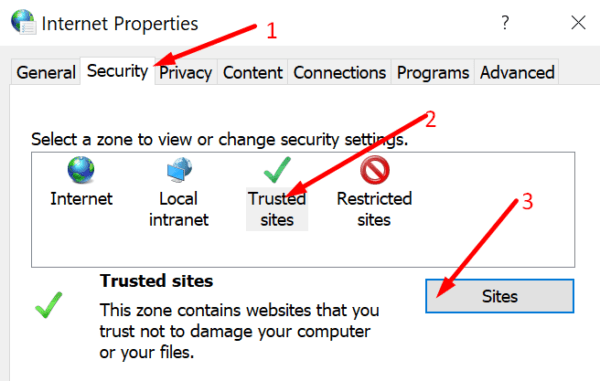
- Then go to Security and click on Trusted sites. Hit the Sites button.

- In the new Trusted sites window, add the address of the problematic website. Save the changes to whitelist that page, restart your computer and try again.
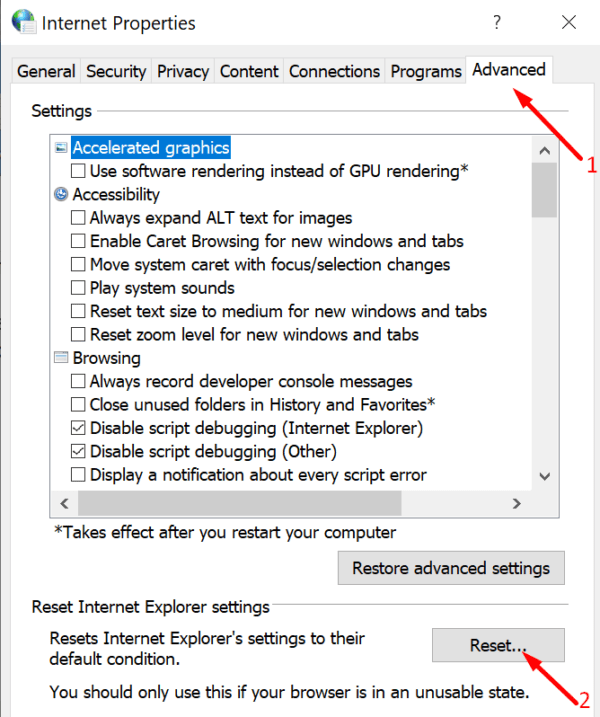
- If the issue has not been resolved, click on the Advanced tab.
- Scroll down to Security and uncheck the box called Check for server certificate revocation. Apply the changes.

- If the problem persists, click on the Advanced tab again. Hit the Reset button. This will restore your default settings.


If the issue is still there, switch to a different browser. Chrome and Firefox are two excellent alternatives.