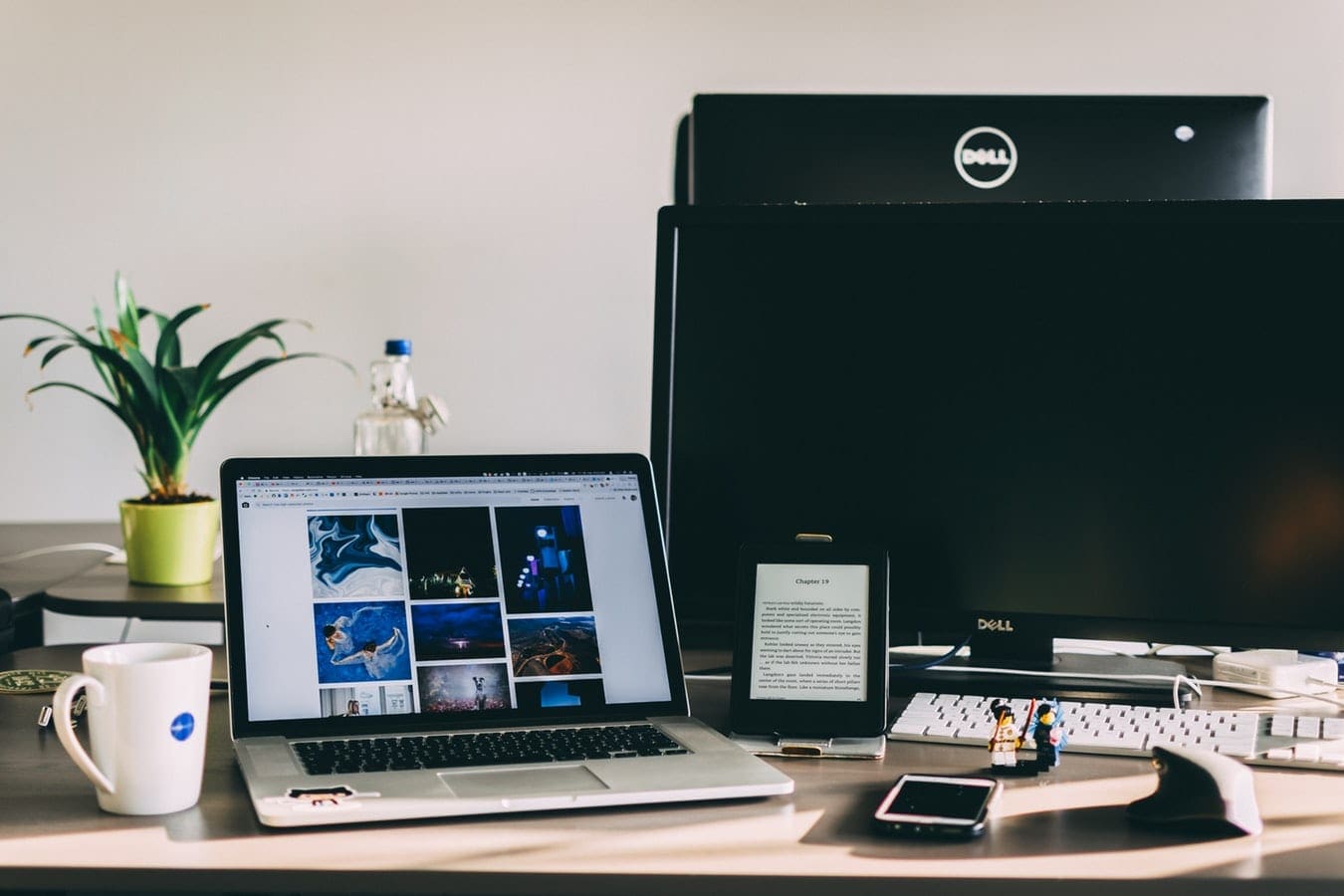
There are two different ways that you can connect an iPhone to a Dell monitor. The first way will turn your monitor into an over-sized phone screen, basically, you just need to buy the correct adapter and your set.
The second way is to wirelessly connect your ios enabled device via BlueTooth. If you do this then you will have certain phone functions available on your computer, think of it like connecting your phone to your car except with a visual display. We are going to guide you through the steps to connect via BlueTooth but if you need to find an adapter Apple has a link for them on its support page.
Contents
Hardware and Software Requirements
In order for this to work first, you need to make sure that you are using a Dell computer that has the capability to wireless interface via BlueTooth and an iPhone that is running iOS 10.
If you meet these two requirements then you will be able to utilize Dell’s Mobile Connect app, which comes pre-installed on all new Dell computers, and by downloading the accompanying app from the Apple app store.
If the computer does not have the correct software or has an older version, you can download the Windows app by searching for it on the Microsoft app store. The drivers can be updated or downloaded through Dell Update.
Connecting a Phone for the First Time
Step one is to verify that your BlueTooth is turned on.
Next, open up the app on your PC and click the Add New Phone. This will open a wizard where you will be prompted to select the type of phone you are using.
After selecting the phone type you should see a list of all discoverable phones by name and if they have been paired. Find your phone’s name on the list and click select. If you are not sure what your phone’s name is, go to settings then BlueTooth on your iPhone is how you will locate it. There will be line that reads “Now Discoverable as ‘[phone name]’”.
You will need to approve the pairing on both your phone and PC by following the instructions shown on the two screens.
For full functionality, you will need to allow your computer to show notifications. To do this click on the information icon to the right of your computer name on the BlueTooth screen of your iPhone and change the show notification slider to the on position.
Your phone is now connected to your computer and you are ready to start enjoying the benefits of the pairing.
Key Functions
Now that you have your iPhone connected to your PC you can reap the rewards. The PC app has three main functions which are:
Hands-Free Calling
This feature allows you to connect both incoming and outgoing calls directly to your PC. Just like on your phone you will have the option accept, reject or reply via text to incoming calls.
The hands-free feature makes it ideal for conference calls as the call is utilizing the speakers and microphone from your computer and not your phone. If the call is of a more private nature you can switch back to your phone with the push of a button.
Texting
Texts are sent to the PC where you can decide if you want the notification to be presented as a popup or if you would prefer you can keep it all in the messages tab. As a bonus outgoing texts can be written using the PC’s keyboard, making responding even faster than ever.
Display Phone Notifications
All of your phone’s pending notifications will be shown under the notifications tab.
Final Thoughts
The main purpose of connecting your iPhone to a Dell PC is that when your life gets busy, during school or work you no longer need to switch back and forth between your devices to maximize your productivity.