
Connect the Samsung Galaxy Note8 to a TV and enjoy all of the content from your phone on a bigger screen.
Contents
Wireless Option 1 – Miracast (Recommended)
If you have a TV that supports a Miracast connection, you already have everything you need to mirror the screen from your Note 8 to the TV. Every TV links up differently. Check the documentation on your particular TV to find out how to connect a device via Miracast.
If your TV does not support Miracast, you can use a set-top box that supports it. The most commonly used are the Roku and Amazon Fire TV. You could also use a Miracast Video Adapter.
Once you have ensured that your TV or device is set up to receive video, connect your TV to the Note 8 with these steps:
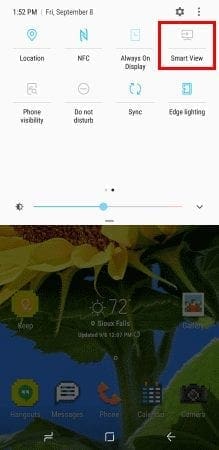
- Swipe down from the tip of the Note8 screen with two fingers.
- Swipe left and select the “Smart View” option.

- Choose the device you wish to connect to.
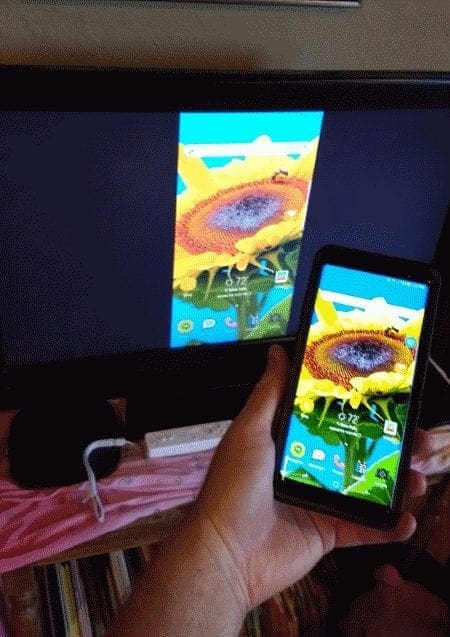
- Once selected, the screen will start mirroring instantly.


Wireless Option 2 – Chromecast
You can get a Google Chromecast and use it with the Note 8 to send content to your TV wirelessly.
- Ensure the Chromecast and Note8 are connected to the same Wi-Fi network.
- Install the Google Home app on the Note8.
- Follow the wizard to setup your device with your TV.
- Apps like Netflix and YouTube will now have a “Cast”
 button within the app that you can use to send the video to the Chromecast and TV.
 If you want to mirror everything on the device, open the Google Home app, select
  , then choose “Cast screen / audio“.

 button within the app that you can use to send the video to the Chromecast and TV.
 If you want to mirror everything on the device, open the Google Home app, select
  , then choose “Cast screen / audio“.
Wired Option – DisplayPort Cable
- Connect a Samsung USB-C to HDMI Adapter to the USB port on your phone.
- Connect a standard HDMI cable between the adapter and TV, and you’re ready to run.


Not working for me Samsung Galaxy Note 8 > LG smart TV 55 inch ????
My Samsung Note 8 does not mirror using Smartview on my LG Roku TV.
Can’t get my phone to mirror bought a Foinnex usb c adapter cable supposed to connect with Samsung s8. I have a jacket smart tv
I have a ordinary tv not a smart TV and I have a Samsung Galaxy Note 8 android fone, my question i have is can i use a firestick and connect it to my tv and fone?
WOW!!!!! You guys are awesome! After hours of looking for a solution you guys fixed my issue in 2 minutes!!! Thank you soooo much for helping us all! God Bless you!!!
I’ve tried over and over again and i can not get it to work. This is very discouraging. I’ve spent a lot of money to have the option of mirroring but does not work. I have tried several TVs even my 3000 dollar samsung smart tv and does not work..
I have been struggling to connect my note and my tab a to this Philips TV, until this method! It was so easy didn’t even take a minute! Much gratitude thank you!
Doesn’t work at all on my TV and I have a brand new note 8
Soooo helpful; thank you for posting!
Perfect!!!
Can’t thank you enough! I’ve been through dongles, and a few other items to try and get this to work, and it took me 5 seconds of reading this page to get my phone to finally mirror to the T.V.
Thank you again so very much!
Great post. Helped me do exactly what I wanted to do a whole lot cheaper than I ? Thought it was going to be!!!