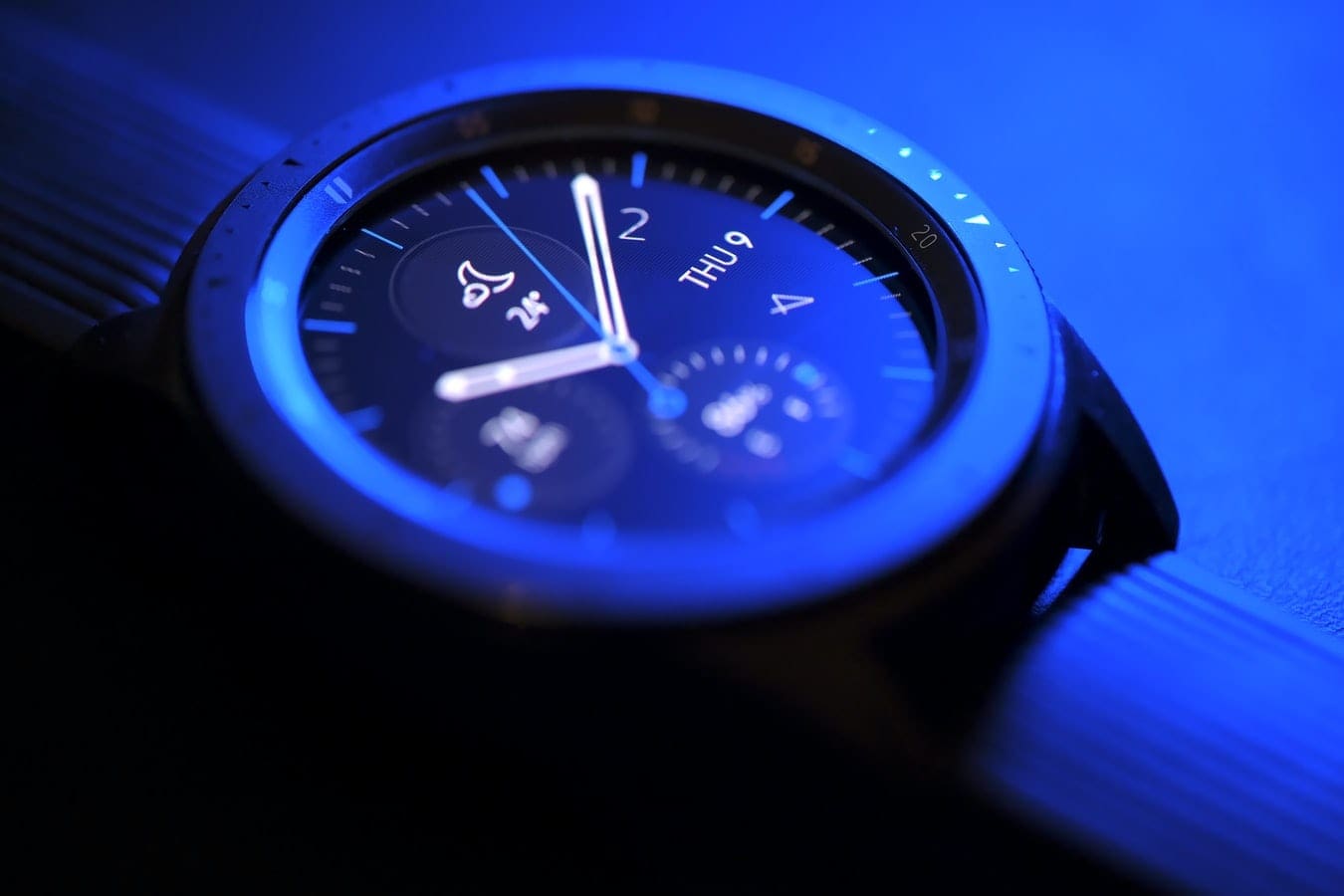
Samsung’s Gear S3 and Gear S3 Frontier are the company’s contribution to the smartwatch trend. It allows you to receive text and email and conduct hands-free phone calls. Both models are for the traveler, adventurer, and office worker who needs to tune out without being caught on their phone.
Contents
Samsung Gear S3 Features Are More Than Bluetooth Capabilities
The Samsung Gear S3 series is Bluetooth® compatible, making it easy to pair with wireless headphones for when you’re out running, tracking your fitness with the built-in S Health app. There is a whole host of other features to explore, however!
The Samsung Gear S3 can track and share your location at any point. It is also equipped with Samsung Pay, so you don’t even need to bring your wallet with you when you’re wearing this smartwatch.
The Gear S3 Frontier is built with military-grade materials, making the watch weatherproof and able to withstand the dreaded drop. Its appearance is bulkier with a more complex watch face.
Turn the bezel, the outer metal rim of the watch, and you’ll be able to access all of your smartwatch’s applications on its face.
Connecting Your Bluetooth Headphones
First, enable Bluetooth on your Gear S3.
- Go to the app screen by pressing the Home Button. This is the button near the lower right portion of the watch bezel.
- Tap the Settings icon, the blue gear icon.
- Find Connections and tap to enter Bluetooth® settings.
- Once you have found the Bluetooth option, tap to activate it.
Bluetooth can remain on while you take the necessary steps to set up your headphones. Once you are ready to connect, do the following.
- To connect your Bluetooth® headphones, go to the apps screen.
- Go to Settings > Connections > Bluetooth®.
- Rotate the bezel until you reach the “BT Audio” or “BT Headset” option.
- Select the name of your headset once you see it scroll across the screen.
- Press Scan if your headset does not show up.
Unpairing Your Bluetooth Headphones
Once you are done using Bluetooth or if you want to pair a different Bluetooth® audio output/set of headphones, simply unpair your watch.
- To unpair your Bluetooth® headphones, go back into Settings > Connections > BT Headset.
- In the BT Headset option, you will see another Settings icon.
- Tap Settings and then tap Unpair.
Troubleshooting Your Bluetooth Connection
If you are having trouble connecting the headphones to your Gear S3, try the following troubleshooting tactics.
- Turn the Gear S3 off. Wait ten seconds before turning it back one again. The watch should automatically reconnect with your phone. Go through the steps to connect the headphones once again.
- Sometimes you’ll have to restart your phone. Completely power the phone down by pressing and holding the power button. Once you turn it back on, go to the Galaxy Wearable application. There, make sure that you are connected to your watch.
- Also, be sure that you have ve conducted the latest software update. On occasion, not updating software can lead to performance issues.
- There may be a problem with the Bluetooth® headphones themselves. Make sure that the headphones are on and charged. If they are and you still cannot connect, test the connection with another pair of headphones.
In Conclusion…
The Samsung Gear S3 smartwatch is a great way to take your phone with you without having to take your phone. Although in a workout or hiking setting where its Bluetooth® capabilities may seem more applicable, it acts as a convenient backup for everyday life — in case you forget something like a credit card or your phone in the car.
The basic Gear S3 model (not the Gear S3 Frontier) can store up to 2GB (about 500 songs), also making it a perfect alternative for audio entertainment throughout the day.
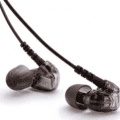
Whichever model you may have, it is worth investing in a set of quality Bluetooth® earbuds. Now go connect to your Gear S3 and listen responsibly!