Skip to content
LogoTechnipages
LogoTechnipages
  • Topics
        • Android
        • Browsers
        • Gaming
        • Hardware
        • Internet
        • iPhone
        • Linux
        • macOS
        • Office
        • Reviews
        • Software
        • Windows
        • Definitions
        • All Recent Posts
  • Product Reviews
  • About

Chrome: How to See the Last Visited Date for Any Site

Judy SanhzDecember 26, 2022 Comments (1)
Auto-Refresh-Chrome-Tab-Without-Extension

Not too long ago, Chrome updates itself to version 96. With that update came another helpful feature that will let you know the last time you visited a site. Some might not care too much about the date they visited a site, but if it’s important to you, you’ll be happy to know it’s there.

The new feature is easy to find. It’ll tell you when you visited a site last, but it won’t give you the exact time. Maybe in future updates, it will add that information. You’ll also see when you visited a link for a specific site as well.

How to See When You Visited a Site on Chrome

To see the day you visited a site, go to that site and tap on the lock icon to the left of the site’s name. You’ll see an option such as cookies, but you’ll also see the last visit. Ask long as you’re there if you want to erase the cookies, you can. Tap on the Cookies option, and you’ll see the trash icon to the right.
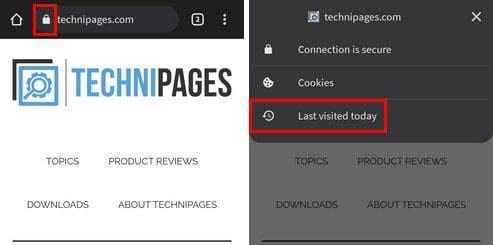
Last visited Chrome Android

If you tap on the last visited time, you’ll also see the history for that site. By tapping on the X to the side, it’s possible to erase that specific visit. The history feature is very useful for those times when you didn’t save the URL for an article. To find the article, you only have to tap on the URL of the article.
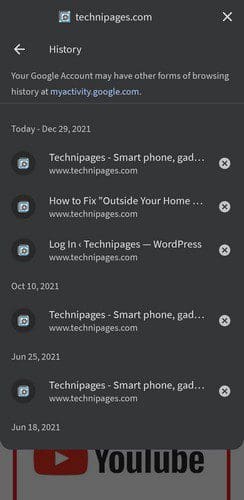
Android Chrome history

If you’re not sure if you’ve visited a site or not, you know what you can do to check. Even if you’re not too tech-savvy, this is something you’ll learn quickly. This is one more feature that’s going to be added to the long list of features Chrome has to offer. You can make Chrome open incognito mode by default and now this.

Conclusion

You might have missed this feature since you might not have been too worried about tapping on the lock icon. Time will tell if Google ads anything else to the last visited feature. What would you add? Share your thoughts in the comments below, and don’t forget to share the article with others on social media.

Categories: Android

Author Judy Sanhz

I am a tech geek who loves technology. I have been writing about tech for over a decade, covering various devices and programs. I write about Android, Apple, and Windows devices and programs. I stay updated on the latest gadgets, upgrades, features, and news. I aim to make complicated tech information easy for everyone to read. I've been with TechniPages from the beginning to help others fix their tech issues with the easy-to-follow guides.

You Might Also Like

  • Everything You Need to Know About Widgets on Android 10

    Judy SanhzAndroid
  • How to Configure the Size of the Keyboard in the Swiftkey Keyboard in Android

    Mel HawthorneAndroid
  • 10 Best AI Image Generator Apps for Android, iPhone, and iPad

    10 Best AI Image Generator Apps for Android, iPhone, and iPad

    Tamal DasAndroid
  • 100+ Best Snapchat Lenses for Cool Selfies in 2023

    100+ Best Snapchat Lenses for Cool Selfies in 2023

    Tamal DasAndroid

Comments

  1. Sneha Rathod says:
    November 10, 2022 at 1:56 am

    I wanaa find last 10 list website i visited.

Leave a Reply

Your email address will not be published. Required fields are marked *

  • hard disk smart command error

    Hard Disk SMART Command Failed – How to Fix 

  • files automatically deleted on click

    Files Getting Deleted Automatically? Here Are Some Reasons Why

  • error 400 when signing in

    Encountered Error 400 When Signing In to Microsoft? Here’s What You Can Do 

  • unable to create notebook error in onenote

    We Were Unable to Create Your Notebook Error in OneNote – Common Fixes 

  • error code 0x800704f8 fix

    Error Code 0x800704f8 – How to Fix 

profile pic

The Experts Behind Technipages

My name is Mitch Bartlett. I've been working in technology for over 20 years in a wide range of tech jobs from Tech Support to Software Testing. I started this site as a technical guide for myself and it has grown into what I hope is a useful reference for all.

Learn More

technipages logo white
linkedin icon

Technipages is part of Guiding Tech Media, a leading digital media publisher focused on helping people figure out technology. Learn more about our mission and team here.

© 2026 Guiding Tech Media All Rights Reserved

  • About Us
  • Contact
  • Terms of Use
  • Privacy Policy

© 2026 Guiding Tech Media All Rights Reserved

Information from your device can be used to personalize your ad experience.
Do not sell my personal information.

Last Updated on December 26, 2022 by Mitch Bartlett