
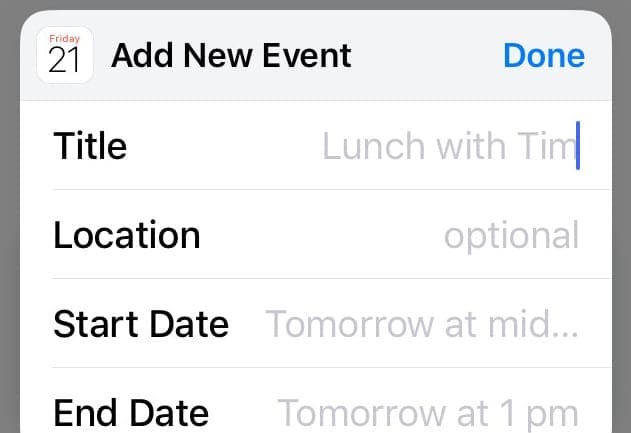
Keeping your list of Calendar events up to date is crucial if you want to stay organized and focused. If an event is no longer of use to you, you can simply delete it to keep your Calendar clean.
But sometimes, deleting a Calendar event on iOS can prove to be an impossible task. If you’re trying to delete stubborn Calendar events on your iPhone but there is no Delete option or the respective event does not disappear no matter what you do, you can use this troubleshooting guide to fix the problem.
Contents
Do This If Calendar Events Won’t Delete on iPhone
1. Disable iCloud sharing for your Calendar
Sometimes, the events on your phone’s iCloud calendar may fail to sync. This often happens with recurring events imported from Outlook.
Turn off iCloud sharing for all your calendars. This should delete all the calendar data and events from your iPhone. Then, enable iCloud sharing and the problematic event should be gone now.
You can use this method to disable event syncing with any third-party calendar tools.
2. Add a new Calendar
If the Delete option is not visible, create a new calendar. Then, go back to the first calendar, tap the Information button (the red i button) and the Delete calendar option should now be available.
Keep in mind that this method will delete the entire calendar, so use it only if you’re OK with that.
Basically, here are the steps to follow:
- Create a new Calendar on your iOS device. Name it ‘Remove events’.
- Now, open the event you want to delete and then move it to your new ‘Remove events’ calendar.
- You can now delete the entire ‘Remove events’ calendar from your phone.
3. Unsubscribe from the Calendar
If the Calendar event you’re trying to delete was created by someone else, you can unsubscribe from the calendar. You need to use your Mac for that.
- On your Mac, open the Calendar app
- Control-click the calendar
- Select Unsubscribe.
If the Calendar is not visible on the left, select View → Show Calendar List.
4. Remove the sender’s email account
Removing the sender’s email account from your iOS device and adding it again should automatically remove all those stubborn iPhone Calendar events connected to the respective email address.
5. Flag the event as junk
If the calendar event you’re trying to delete was sent by an unknown sender, you can simply flag it as junk and then remove it using your Mac. To do this, select the respective calendar event, choose Report Junk, and then select Delete and Report Junk.
That’s it, we hope one of these methods helped you to delete unwanted Calendar events on iOS.




Just found an odd hack that works and let me delete a bunch of old recurring events.
Long-press on the event and select “Cut”. It will ask are you sure, once you acknowledge, it will fail, but next when you open the event it magically now has a delete option at the bottom!
This is just another example of the Apple shift from customer service. I don’t use the iPhone calendar anymore because it is too time consuming and dysfunctional. It’s one of those little life annoyances that may benefit the company (Apple) but can easily be avoided. Just don’t use it.
Oh my gosh this has been driving me NUTS for weeks. I have been trying to delete an event I had had on an every two week repeat. Every time I would delete it it would pop right back up. All I did was go into my GOOGLE calendar, click on the event then clicked delete this event and all reoccurring events. Finally it permanently disappeared. I don’t even know why it got all wonkey like that, but I’m glad that crap is finally gone.
My hack for this problem
Calendar events that don’t delete
1.Go into the day of the event (daily view)
2. Type in the event
3. Let it open in large view
4. Edit it to “no repeats OR None” ie I previously had it on “weekly” repeats
5. Press done
6. Go back in to edit and delete the event entirely
Thank you so much… This was driving me insane… I had to delete the event in my Google calendar also!!
This is a solution for spam events and doesn’t even address the undeletable event problem. What a waste of time and bandwidth.
did not help and messed me up big time
I delete it but it keeps popping up.I didn’t put it there in the first place .have no idea