
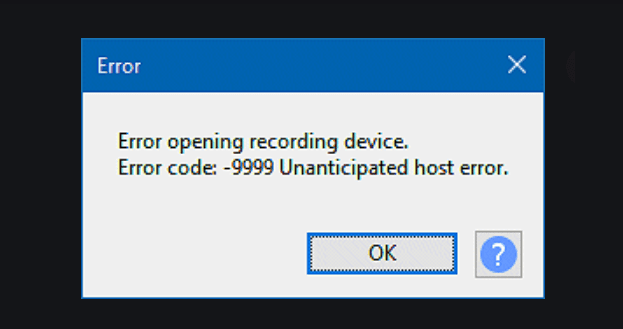
Audacity is a popular audio recording and editing program that’s used by millions of users worldwide.
While recording audio using Audacity is a fairly simple task thanks to the intuitive user interface, error 9999 may sometimes nip the whole process in the bud.
This error indicates something is wrong and Audacity could not detect or connect to your microphone in order to launch the audio recording session.
If you’re using an external microphone, make sure the mic is properly inserted into your PC port. Alternatively, switch to a different port if your computer configuration supports that.
Contents
3 Methods to Fix Audacity Error 9999
Check your privacy settings
If you can’t use your computer microphone to record audio, the next thing you should do after restarting your PC is to make sure third-party apps such as Audacity are allowed to access and use your microphone.
It’s important to note that Windows 10 automatically blocks apps from accessing your microphone. As a result, you need to manually change the microphone privacy settings so as to let apps use the mic.
The OS also reverts these settings back to default after installing the latest updates. So, to make sure Audacity and other audio recording apps can use your mic, you need to enable this feature after every update.
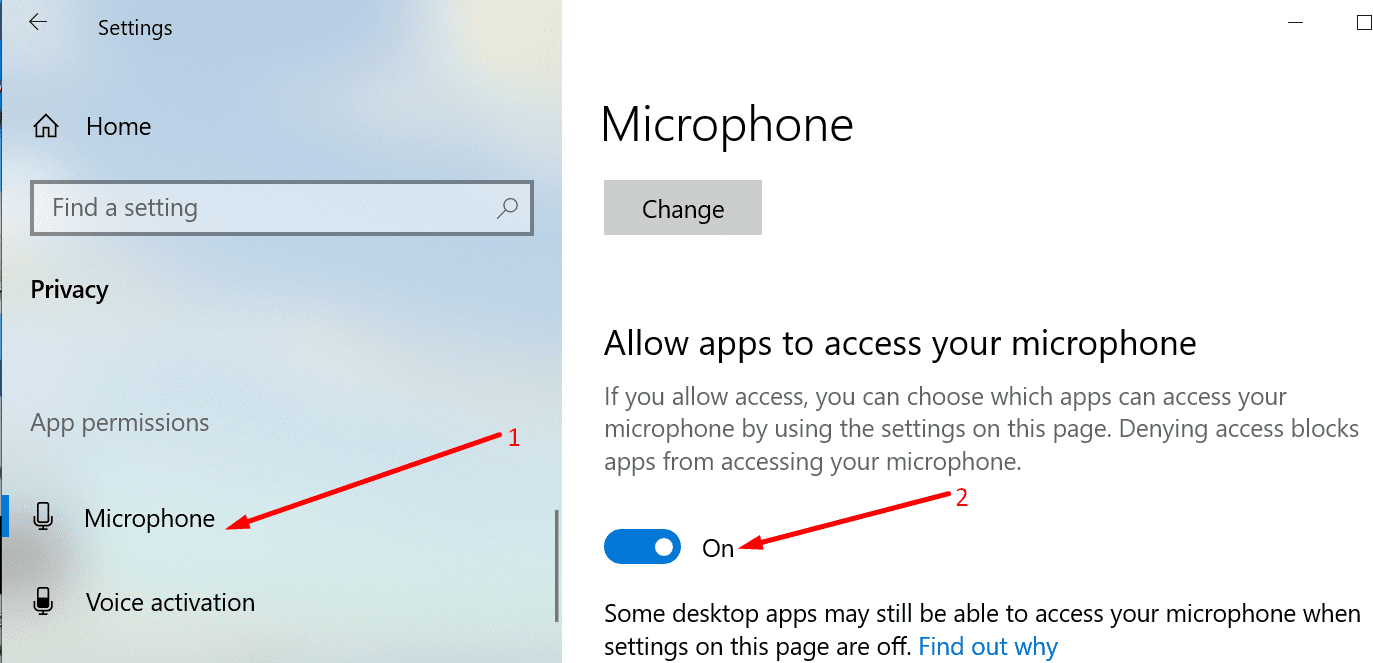
- Go to Settings
- Click on Privacy
- On the left-hand pane, scroll down to App permissions
- Select Microphone
- Make sure Allow apps to access microphone is enabled.

Disable other apps and programs
If there are other apps running in the background that may be using your microphone, make sure to disable them.
You can do that by opening the Task Manager. Click on the Processes tab, right-click on the program that may be using your mic, and select End Task.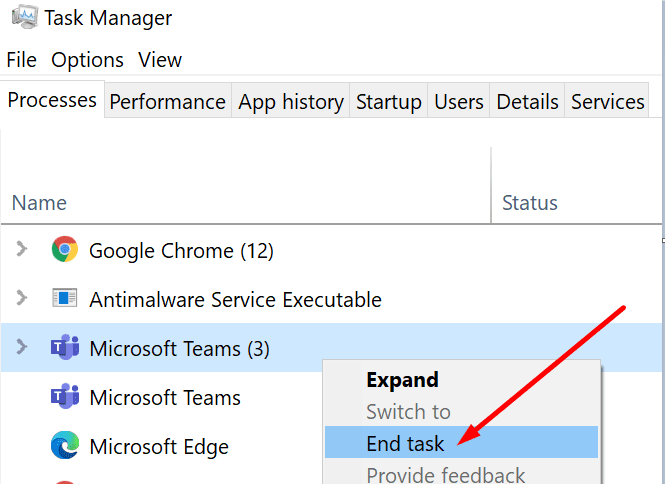
Some users suggested that Skype or Microsoft Teams might be interfering with Audacity. So, you can disable these two programs first and check if you’re still getting error 9999.
Other users suggested your antivirus might be blocking Audacity’s access to your microphone in an attempt to block un-trusted apps from listening in to your mic.
So, you can also try to temporarily disable your antivirus. Keep in mind that using this workaround will render your computer vulnerable to threats. Don’t forget to re-enable your antivirus immediately after you recorded your audio file.
Clean boot your computer
If you have no idea which programs might be trying to use your microphone, you can simply clean boot your computer.
By doing so, you restart Windows 10 using only a limited set of drivers and processes. There will be no third-party tools running in the background.
For more information on how to clean boot your computer, see What is a Windows Clean Boot and How to Perform One.
Launch Audacity and check if you’re still getting error 9999. If the app is running properly now, try to identify which program is interfering with your audio recording tool.
If the error persists, you can uninstall and reinstall Audacity. Or you can switch to a different audio recording program.





Any time I am trying to record a tape by Audacity Cassette to Cmputer it is prompting Error 9999.
I have got the latest update installed. Is is anything mechanical problem.