Skip to content
LogoTechnipages
LogoTechnipages
  • Topics
        • Android
        • Browsers
        • Gaming
        • Hardware
        • Internet
        • iPhone
        • Linux
        • macOS
        • Office
        • Reviews
        • Software
        • Windows
        • Definitions
        • All Recent Posts
  • Product Reviews
  • About

Android: How to Rotate a Video for Free

Judy SanhzAugust 17, 2022 Comments (0)
Record Video

Have you ever had to watch a video that was recorded at the wrong angle? I know I have. If you want to watch it, you’re forced to tilt your head for as long as the video lasts. Or maybe the video started with the right angle. Still, the person recording flipped their phone seconds after starting to record. Here are two ways you can fix the angle of that video using your Android device.

Contents

  • 1 How to Flip a Video on Android
    • 1.1 How to Rotate a Video on Android Using a Third-Party App
    • 1.2 Conclusion

How to Flip a Video on Android

You probably already have way too many apps on your device. The last thing you may want to do is install yet another one to rotate the video. The good news is that there is an app you may already have on your Android device is the one you can use. The app you can use to rotate the video is Google Photos. Go to the Photos section and open the video you want to rotate.

If it’s a video that you don’t have on Google Photos, you’ll need to upload it first. You can go to your device’s gallery and tap the share icon to share it to Google Photos. Once you’re ready with the video, it should start playing automatically. Tap on the Edit option at the bottom. If you don’t see it, tap on the screen while the video is playing, and it should appear.
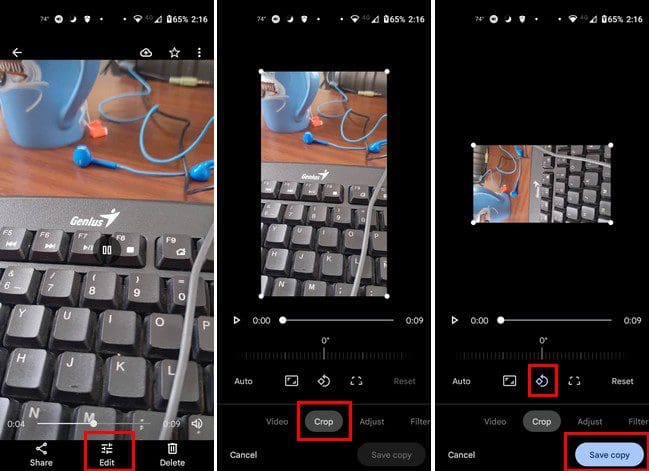
Google Photos Rotate Video

Once you tap on the Save copy button, you’ll see the copy added with the rest of your videos. When it comes to rotating a video using Google Photos, that’s all there is to it. If you are willing to use a third-party app, you can always use Vita.

How to Rotate a Video on Android Using a Third-Party App

An app you can use to rotate the video for free is Vita. It has other editing features you can use but gives you more options. For example, other apps may only allow you to flip the video from horizontal to vertical, and that’s it. But, Vita gives you different angles for your video. Once you’ve downloaded the video, tap on the New Project button at the top. Add your video and tap the arrow at the bottom right.
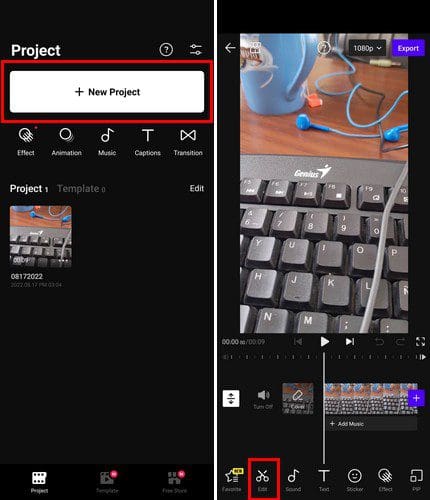
Video Flip Record

When the video is done uploading, you’ll see various tabs at the bottom. Tap the Edit tab and swipe left until you see the rotate option. Tap on it and choose how much you want to rotate your video. When you select an option, the video will be rotated automatically.
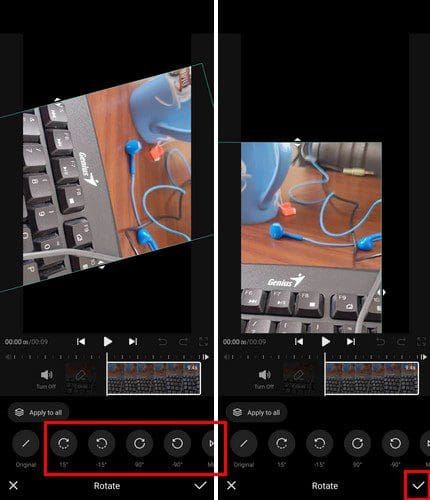
Vita Til Video

When you’re done, don’t forget to tap on the check mark at the bottom right. You’ll also see the option to export your video and find it in your Android gallery app.

Conclusion

Rotating videos on Android doesn’t have to be a difficult task, You can use the Google Photos app, or you can use a third-party app. There are various to choose from n Google Play, but Vita is a good option that gave no issues and didn’t bombard you with ads during testing. Which method do you think you’re going to try first? Share your thoughts in the comments below, and don’t forget to share the article with others on social media.

Categories: Android

Author Judy Sanhz

I am a tech geek who loves technology. I have been writing about tech for over a decade, covering various devices and programs. I write about Android, Apple, and Windows devices and programs. I stay updated on the latest gadgets, upgrades, features, and news. I aim to make complicated tech information easy for everyone to read. I've been with TechniPages from the beginning to help others fix their tech issues with the easy-to-follow guides.

You Might Also Like

  • Android: How to Disable Auto-Correct in Easy Steps

    Mitch BartlettAndroid
  • Android: How to Add a Gmail Account

    Judy SanhzAndroid
  • WhatsApp: How to Hide Your Profile Picture from a Specific Contact

    Judy SanhzAndroid
  • 7 Offline and Free Games for Any Android Device

    Judy SanhzAndroid

Leave a Reply

Your email address will not be published. Required fields are marked *

  • service outage message on Xbox

    What to Do With a Service Outage Message on Xbox

  • signs your hdd is failing

    Signs That Your HDD Is Failing

  • how to fix error code 0x800705b4 in windows 11

    How to Fix Error Code 0x800705b4 in Windows 11

  • does chromebook need an antivirus

    Does Chromebook Need an Antivirus?

  • top vpns

    Top 5 VPNs to Keep Your Information Private in 2026

profile pic

The Experts Behind Technipages

My name is Mitch Bartlett. I've been working in technology for over 20 years in a wide range of tech jobs from Tech Support to Software Testing. I started this site as a technical guide for myself and it has grown into what I hope is a useful reference for all.

Learn More

technipages logo white
linkedin icon

Technipages is part of Guiding Tech Media, a leading digital media publisher focused on helping people figure out technology. Learn more about our mission and team here.

© 2026 Guiding Tech Media All Rights Reserved

  • About Us
  • Contact
  • Terms of Use
  • Privacy Policy

© 2026 Guiding Tech Media All Rights Reserved

Information from your device can be used to personalize your ad experience.
Do not sell my personal information.

Last Updated on August 17, 2022 by Judy Sanhz