Skip to content
LogoTechnipages
LogoTechnipages
  • Topics
        • Android
        • Browsers
        • Gaming
        • Hardware
        • Internet
        • iPhone
        • Linux
        • macOS
        • Office
        • Reviews
        • Software
        • Windows
        • Definitions
        • All Recent Posts
  • Product Reviews
  • About

Add a New Word to Your Keyboard’s Dictionary – Android

Judy SanhzApril 25, 2021 Comments (0)

It’s happened to all of us. You’re typing, and when you type a word that’s not in your keyboard’s dictionary, it gets changed. The word that gets changed might not be a big deal, and the word thing that can happen is that your message doesn’t make any sense. But, the word that gets changed could do something such as offend someone, something that could have been avoided if the new word was in your device’s dictionary.

The good news is that adding a new word to your Android dictionary is an easy task. Also, if when you type, you see way too many suggestions, you’ll see how you can remove specific words for a more clean look.

Contents

  • 1 How to Add a Word to Dictionary – Android
  • 2 How to Manage Auto-Correct  – Android
  • 3 How to Turn off Gboard Spell Checker
    • 3.1 Conclusion

How to Add a Word to Dictionary – Android

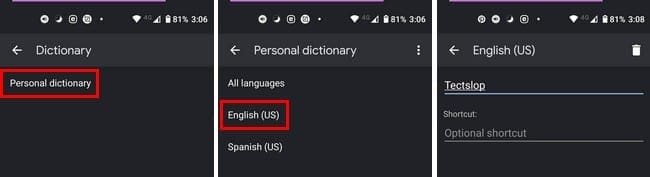
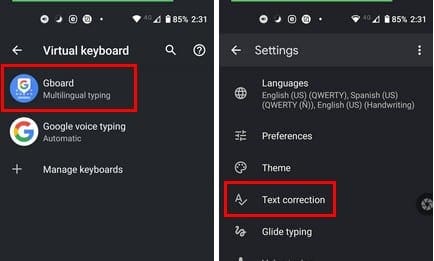
When you add a word to the dictionary, you type it won’t change the next time. You’ll finally be able to relax and not have to worry about sending the wrong message. To add a word, go to:

  • Settings
  • System
  • Language and Input
  • Virtual Keyboard
  • Choose current keyboard
  • Text Correction

  • Personal Dictionary
  • Select your language
  • Tap plus sign to add a new word
  • Tap on the back button to save

To save some time, you can also save time typing by adding a shortcut to the word you added. This is especially useful when the word you have to type is long. The shortcut is optional. You can still add the word if you decide not to add a shortcut.

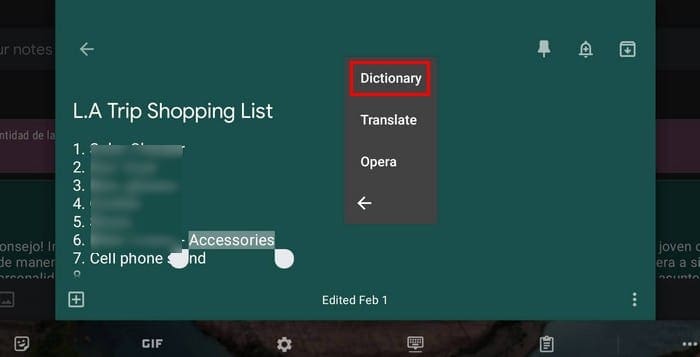
There’s not her option you can try, but it’s not going to work on all apps. To see if it works, you’ll need to long-press on the word and see if the Dictionary option appears. If you try to add a word and you don’t have the language installed, you’ll see a message letting you know. You’ll be taken to the section where you can manage the dictionaries and install the language you need. You’ll see a download icon to the right of the language. Tap on it to start downloading the language pack.
How to Manage Auto-Correct  – Android

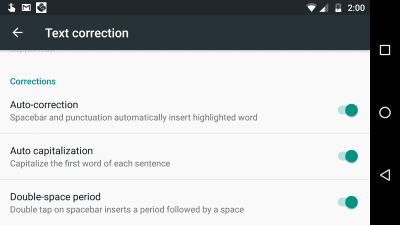
If you’ve had enough of auto-correct and want to disable it, you’ll need to go to:

  • Settings

  • System
  • Language and Input
  • Virtual keyboard

  • Choose the keyboard you’re using
  • Text Correction
  • Toggle off auto-correct

How to Turn off Gboard Spell Checker

If just to be on the safe side, you want to turn off Gboard’s spell checker, know that you can do so in a few steps. You’ll need to go to:

  • Settings
  • System
  • Language and input
  • Advanced

  • Spell Checker
  • Toggle off Use spell checker

Conclusion

Now that you know how to add a specific word to your device’s dictionary, you’ll be able to type more comfortably, knowing that the words you use the most won’t get changed. You can say goodbye to those embarrassing messages that you never meant to type. Sometimes it can be as easy as long-pressing on the word, but other times you might need to go into your device’s settings. Do you have a lot of words to add? Share your thoughts in the comments below.

Categories: Android

Author Judy Sanhz

I am a tech geek who loves technology. I have been writing about tech for over a decade, covering various devices and programs. I write about Android, Apple, and Windows devices and programs. I stay updated on the latest gadgets, upgrades, features, and news. I aim to make complicated tech information easy for everyone to read. I've been with TechniPages from the beginning to help others fix their tech issues with the easy-to-follow guides.

You Might Also Like

  • Android: How to Disable Auto-Correct in Easy Steps

    Mitch BartlettAndroid
  • Android: How to Add a Gmail Account

    Judy SanhzAndroid
  • WhatsApp: How to Hide Your Profile Picture from a Specific Contact

    Judy SanhzAndroid
  • 7 Offline and Free Games for Any Android Device

    Judy SanhzAndroid

Leave a Reply

Your email address will not be published. Required fields are marked *

  • browser screen goes black

    Browser Screen Goes Black Intermittently 

  • computer heating up in hyper v

    Computer Heating Up When Using Hyper-V – How to Fix 

  • clipchamp unexpected application error

    Clipchamp Unexpected Application Error: Here’s the Solution 

  • winload.efi file missing error

    Winload.EFI File Missing Error on Boot – How to Fix

  • fix error 0x9cfc7550

    How to Fix Error 0x9cfc7550 (We Couldn’t Create a New Partition) in Windows 

profile pic

The Experts Behind Technipages

My name is Mitch Bartlett. I've been working in technology for over 20 years in a wide range of tech jobs from Tech Support to Software Testing. I started this site as a technical guide for myself and it has grown into what I hope is a useful reference for all.

Learn More

technipages logo white
linkedin icon

Technipages is part of Guiding Tech Media, a leading digital media publisher focused on helping people figure out technology. Learn more about our mission and team here.

© 2025 Guiding Tech Media All Rights Reserved

  • About Us
  • Contact
  • Terms of Use
  • Privacy Policy

© 2025 Guiding Tech Media All Rights Reserved

Information from your device can be used to personalize your ad experience.
Do not sell my personal information.

Last Updated on April 25, 2021 by Judy Sanhz